October 11, 2026
Lead Generation Strategies: 20 Ways to Get Qualified Leads
Lead Generation Strategies Lead generation strategies ...
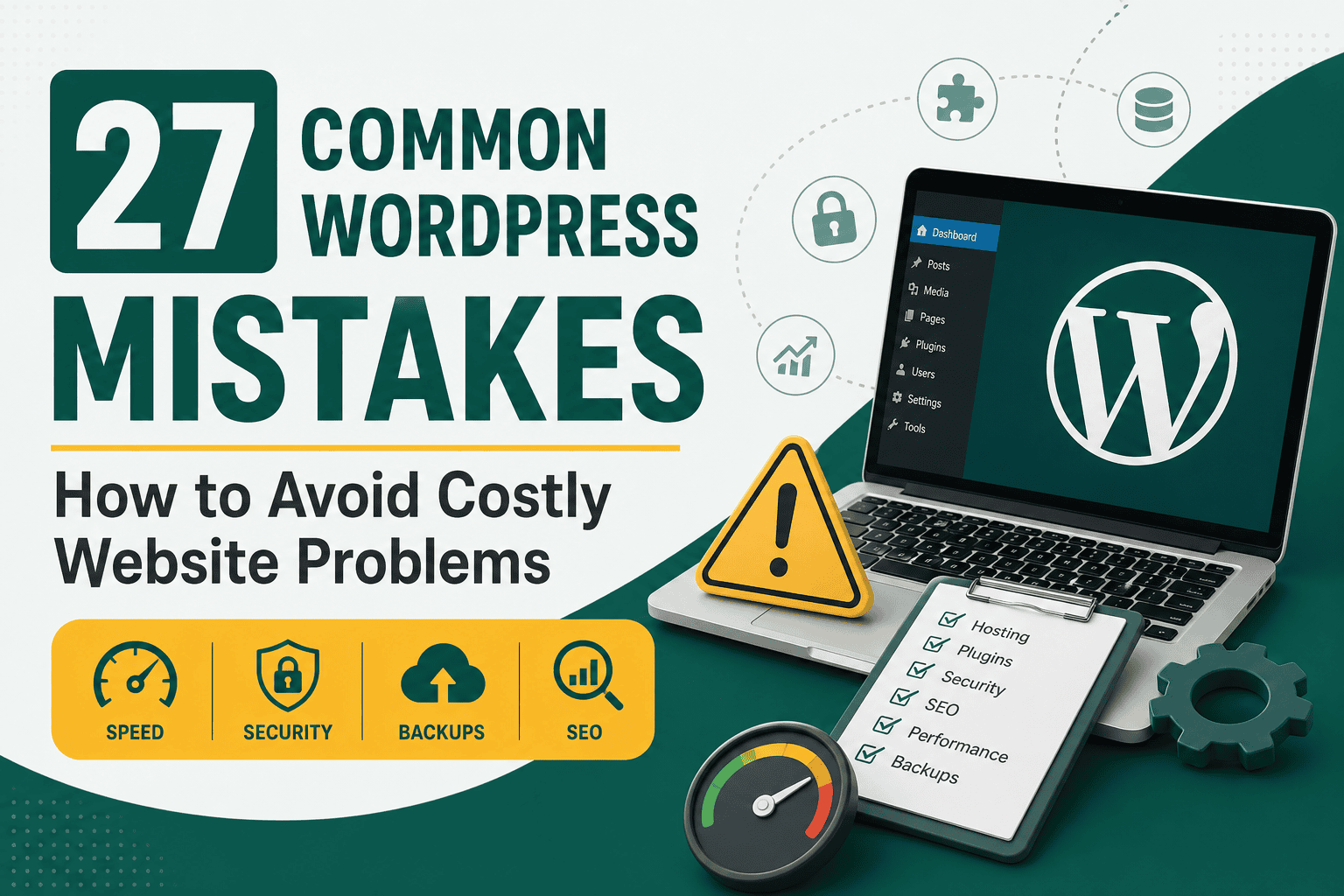
WordPress is one of the most flexible and widely used website platforms in the world, but that flexibility also makes it easy to make avoidable mistakes. Many website owners install too many plugins, choose poor hosting, ignore security, upload huge images, skip backups, or build pages without thinking about speed, SEO, or long-term maintenance.
This guide covers the most common WordPress mistakes and explains how to avoid them. Whether you are launching a new business website, managing a blog, running a WooCommerce store, or improving an existing site, fixing these issues can help you create a faster, safer, easier-to-manage website that performs better for visitors and search engines.
One of the most common WordPress mistakes is choosing hosting based only on the lowest price. Cheap hosting may seem attractive at the beginning, but it can lead to slow loading times, frequent downtime, weak security, poor support, and limited scalability.
Your hosting affects almost everything: page speed, Core Web Vitals, uptime, backups, server response time, email reliability, and how well your site handles traffic spikes. A good WordPress host should provide strong performance, modern PHP versions, SSL support, caching options, security features, staging environments, and responsive technical support.
If you are unsure what to look for, this WordPress hosting guide explains how to choose hosting based on performance, security, support, and long-term website needs.
Plugins are one of WordPress’s biggest strengths, but they are also one of the most common sources of problems. Many site owners install a plugin for every small feature without checking whether it is necessary, well-maintained, secure, or compatible with the rest of the site.
Too many plugins can slow down your website, create security vulnerabilities, cause conflicts, duplicate functionality, and make updates more difficult. The issue is not only the number of plugins, but also their quality. One poorly coded plugin can create more problems than several lightweight, well-built plugins.
For a practical breakdown of what is worth installing and what should be avoided, review this guide to WordPress plugins you actually need.
Your WordPress theme controls more than your website’s appearance. It can affect performance, mobile usability, accessibility, SEO structure, compatibility with plugins, and how easy your site is to manage. A common mistake is choosing a theme because it looks impressive in a demo, without considering how heavy or difficult it is to customize.
Many themes include excessive scripts, page builder dependencies, preloaded design effects, unused templates, and features you may never use. These can increase page weight and make the site harder to maintain.
A slow WordPress site can hurt user experience, conversions, and search visibility. Visitors are less likely to stay on a page that takes too long to load, especially on mobile devices. Speed also affects Core Web Vitals, which are part of Google’s page experience signals.
Common causes of slow WordPress websites include poor hosting, oversized images, too many plugins, render-blocking scripts, unoptimized fonts, no caching, heavy themes, and unnecessary third-party tracking scripts.
If speed is a major concern, this WordPress speed optimization guide explains how to improve performance through hosting, caching, image optimization, code cleanup, and better technical structure.
Images are often the largest files on a WordPress website. Many site owners upload images directly from cameras, stock libraries, or design tools without resizing or compressing them. A single image can be several megabytes when it only needs to be a few hundred kilobytes.
Large images slow down pages, increase bandwidth usage, hurt mobile performance, and can contribute to poor Largest Contentful Paint scores. This is especially important for homepages, landing pages, blogs, portfolios, and WooCommerce product pages.
To fix this issue properly, follow a structured process for WordPress image optimization, including resizing, compression, modern formats, lazy loading, and clean image metadata.
Many WordPress site owners only think about backups after something goes wrong. This is a serious mistake. A plugin conflict, failed update, malware infection, hosting issue, accidental deletion, or developer error can break your website quickly.
Without a reliable backup, recovery can be expensive, stressful, or impossible. A proper backup system should include both files and the database, because WordPress stores content, settings, users, plugin data, and orders in the database.
WordPress is secure when maintained properly, but it becomes vulnerable when site owners ignore updates, use weak passwords, install unreliable plugins, skip SSL, or fail to monitor suspicious activity. Because WordPress is popular, it is also a common target for automated attacks.
Security problems can lead to malware, spam redirects, stolen data, blacklisted search results, damaged reputation, and lost revenue. This is especially risky for membership sites, business websites, and ecommerce stores.
Another common WordPress mistake is launching a website without SSL properly configured. SSL encrypts information between the visitor’s browser and your server. Without it, browsers may show “Not Secure” warnings, which can reduce trust and hurt conversions.
SSL is essential for contact forms, login pages, ecommerce checkouts, membership areas, and any website that wants to appear professional. It is also a basic expectation for modern SEO and browser compatibility.
Updates are not only about new features. They often include security patches, bug fixes, compatibility improvements, and performance enhancements. Ignoring updates can leave your website exposed to known vulnerabilities.
However, updating carelessly can also cause problems. Some site owners update everything directly on the live website without a backup or testing process. That can break layouts, forms, checkout flows, or plugin functionality.
Weak login credentials are one of the easiest ways to compromise a WordPress site. Usernames like “admin” combined with simple passwords make brute-force attacks more likely to succeed. This is especially risky if login protection is not configured.
Not every user needs full administrator permissions. Giving admin access to writers, editors, marketers, contractors, or temporary users increases the risk of accidental changes, deleted content, plugin conflicts, and security problems.
WordPress includes user roles for a reason. Administrators can control everything, while editors, authors, contributors, and subscribers have more limited permissions.
Many visitors will view your WordPress site on a phone. If your design only looks good on desktop, you may lose leads, sales, and engagement. Mobile problems often include tiny text, crowded menus, slow loading, buttons that are hard to tap, popups that block content, and layouts that break on smaller screens.
WordPress gives you a strong foundation for SEO, but it does not automatically optimize your website. Common SEO mistakes include missing title tags, weak meta descriptions, poor heading structure, duplicate content, thin pages, missing internal links, slow pages, unoptimized images, and unclear URLs.
Some website owners install an SEO plugin and assume the job is done. An SEO plugin can help, but it cannot replace a proper content strategy, technical structure, user experience, and ongoing optimization.
Internal links help users discover relevant content and help search engines understand the structure of your website. A common mistake is publishing blog posts and pages in isolation, with no meaningful links between them.
Good internal linking connects related topics naturally. For example, a post about WordPress mistakes can link to deeper guides about hosting, plugins, speed, image optimization, and redesign planning. This helps visitors continue learning and distributes authority across important pages.
Broken links create a poor user experience and can waste crawl budget. They often happen after deleting pages, changing URLs, removing products, restructuring a blog, or redesigning a website. Visitors who land on broken pages may leave instead of looking for the correct content.
To keep your site healthy, create a process for finding and fixing broken links. This broken link management guide explains how to identify broken links, set up redirects, and prevent link problems from damaging SEO and user experience.
Changing URLs without proper redirects is one of the fastest ways to lose SEO traffic. If a page has backlinks, rankings, or regular visitors, changing its URL can break access unless you redirect the old URL to the new one.
This mistake often happens during redesigns, content restructuring, migration from another platform, or changing permalink settings after a site is already indexed.
A WordPress website should support business goals, not just exist online. Without analytics, you cannot see which pages attract visitors, which traffic sources convert, where users drop off, or whether your marketing efforts are working.
Many site owners install analytics but never configure goals, events, ecommerce tracking, or form submission tracking. As a result, they know how many people visited the website but not whether those visits produced value.
Another common WordPress mistake is publishing content just to fill a blog. Thin, generic, duplicated, or low-value content rarely helps users or search engines. A blog with many weak posts can become harder to manage and may dilute the overall quality of the site.
Strong content should answer real questions, match search intent, provide practical guidance, and support your business goals. Quality matters more than volume.
Accessibility means making your website usable for people with different abilities, devices, and browsing needs. Common accessibility mistakes include low color contrast, missing alt text, poor keyboard navigation, unclear form labels, small text, and buttons that are not descriptive.
Accessibility is not only a legal or ethical concern. It also improves usability for everyone and often supports better SEO, cleaner structure, and stronger conversion rates.
Some WordPress websites become difficult to manage because every page is built with complex custom layouts, excessive shortcodes, nested page builder elements, and inconsistent design patterns. This makes future edits slower and increases the risk of breaking layouts.
A good WordPress site should balance design flexibility with maintainability. Reusable templates, global styles, content blocks, and clear design systems make updates easier and reduce long-term costs.
Many WordPress projects start with design before strategy. This can lead to confusing navigation, duplicate pages, missing service pages, weak calls to action, and poor content organization. A website should be planned around users, business goals, SEO opportunities, and conversion paths.
Before building or redesigning, map your main pages, supporting content, categories, navigation, calls to action, and internal linking opportunities. If you are preparing for a bigger rebuild, this website redesign guide provides a useful framework for planning structure, SEO, content, performance, and launch checks.
Your website should guide visitors toward useful next steps. A common mistake is creating attractive pages that do not clearly tell visitors what to do next. Calls to action may be missing, vague, hard to find, or buried at the bottom of long pages.
Strong calls to action help users request a quote, book a consultation, buy a product, join an email list, download a resource, or contact your team.
Popups, chat widgets, banners, cookie notices, promotional bars, and notification prompts can all have a place, but using too many at once creates a frustrating experience. Visitors should not have to close multiple overlays before reading your content.
This problem is especially harmful on mobile devices, where popups can block the entire screen and make navigation difficult.
Contact forms, quote forms, newsletter forms, and checkout forms are often critical conversion points. Yet many WordPress site owners set them up once and never test them again. Forms can break due to plugin updates, email delivery problems, spam filters, API changes, or incorrect notification settings.
WordPress websites often send emails for form notifications, password resets, order confirmations, membership alerts, and admin messages. A common mistake is relying on default server email settings, which may cause messages to land in spam or fail completely.
Editing core WordPress, theme, or plugin files directly is a risky mistake. Your changes may be overwritten during updates, and you may make the site harder to troubleshoot. This can also create security and compatibility problems.
A staging site is a private copy of your website where you can test changes before applying them to the live version. Skipping staging is a common mistake that can lead to broken layouts, plugin conflicts, checkout problems, and downtime.
Staging is especially important for business websites, WooCommerce stores, membership sites, and any site where downtime affects revenue or customer trust.
Core Web Vitals measure important parts of the user experience, including loading performance, responsiveness, and visual stability. WordPress sites often struggle with these metrics because of heavy themes, unoptimized images, slow servers, layout shifts, and excessive JavaScript.
Even if your site looks good visually, poor Core Web Vitals can make it feel slow or unstable to real visitors.
WooCommerce is powerful, but it is not just another small plugin. It adds products, carts, checkout flows, customer accounts, payment gateways, taxes, shipping rules, transactional emails, and order management. Poor setup can lead to lost sales and operational problems.
Common WooCommerce mistakes include unclear shipping options, missing tax settings, slow product pages, weak product descriptions, poor checkout usability, no abandoned cart strategy, and insufficient security.
A WordPress website is not a one-time project. It needs ongoing maintenance, updates, backups, security checks, content improvements, performance monitoring, and SEO review. Many websites perform well at launch but slowly decline because no one is responsible for maintaining them.
Use this quick checklist to review your website:
The most common WordPress mistakes usually come from rushing decisions, installing tools without a plan, ignoring maintenance, or focusing only on design while overlooking performance, security, SEO, and usability. The good news is that most of these problems are preventable.
Start with the fundamentals: reliable hosting, a clean theme, essential plugins, optimized images, strong security, regular backups, accurate tracking, and a clear content structure. Then maintain the site consistently over time. A well-managed WordPress website can be fast, secure, scalable, and effective for business growth.