September 21, 2026
Google Ads Conversion Tracking: Complete Setup Guide
Google Ads Conversion Tracking Google Ads conversion t...
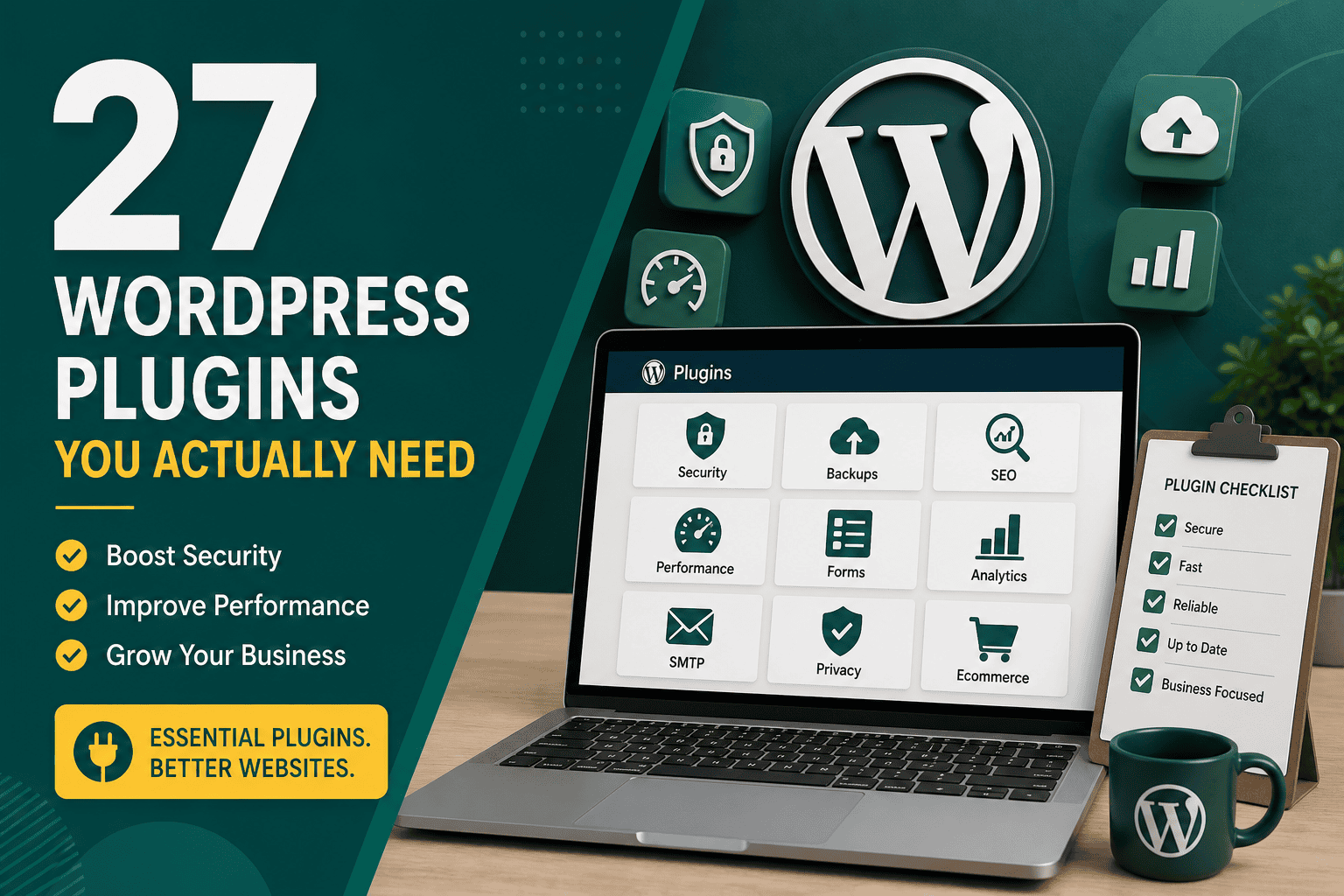
Choosing the wordpress plugins you actually need is one of the most important decisions you can make for your website. Plugins can add powerful features to WordPress, but installing too many, choosing poorly coded tools, or duplicating functionality can slow your site, create security risks, and make maintenance harder.
The goal is not to install every popular plugin. The goal is to build a lean, reliable WordPress setup that supports your business, improves user experience, protects your website, and helps you grow without unnecessary complexity.
This guide explains the essential plugin categories most WordPress websites should consider, what each type of plugin does, how to choose the right ones, and which plugins you may not need at all.
WordPress plugins are useful because they extend your website without requiring custom code for every feature. However, every plugin can add database queries, JavaScript, CSS files, background tasks, admin settings, and potential security exposure.
A well-built WordPress site usually has fewer plugins, not more. The best setup includes only tools that solve a real problem, are actively maintained, work well with your theme or builder, and do not duplicate features already handled by your hosting, CDN, theme, or custom development.
Before installing a plugin, ask:
Most business websites do not need dozens of plugins. They usually need a reliable set of tools across a few essential categories: security, backups, SEO, performance, forms, analytics, and sometimes ecommerce or marketing integrations.
A security plugin helps protect your WordPress site from common threats such as brute-force login attempts, malware, suspicious file changes, and unauthorized access. WordPress itself is secure when maintained properly, but plugins, weak passwords, outdated themes, and poor hosting can increase risk.
A good WordPress security plugin may include:
You do not always need the heaviest security plugin available. If your hosting already provides a web application firewall, malware scanning, and server-level protections, you may only need a lighter plugin for login security, two-factor authentication, and activity monitoring.
Backups are non-negotiable. A backup plugin creates copies of your website files and database so you can restore the site if something goes wrong. This is useful after failed updates, malware infections, accidental deletions, plugin conflicts, or hosting issues.
Look for a backup plugin that supports:
Do not rely only on backups stored on the same server as your website. If the server fails or becomes compromised, those backups may become unavailable. Ideally, use hosting-level backups plus an independent off-site backup solution.
An SEO plugin helps control how your site appears in search engines. It does not automatically make your content rank, but it gives you the technical tools needed to manage metadata, indexation, XML sitemaps, schema markup, redirects, and search appearance.
A useful SEO plugin should help with:
Popular SEO plugins can be powerful, but avoid enabling every feature without a strategy. Misconfigured SEO settings can accidentally noindex important pages, generate low-quality sitemap entries, or create duplicate metadata.
Performance plugins help improve page speed by caching pages, minifying files, deferring scripts, optimizing CSS delivery, and reducing server workload. Site speed affects user experience, conversions, and search performance, so this category is important for almost every WordPress website.
A performance plugin may include:
Performance optimization should be handled carefully. Combining multiple caching and optimization plugins can break layouts, forms, checkout pages, scripts, or tracking tags. Start with one trusted performance plugin and test changes gradually.
If your goal is to improve speed, it helps to understand the actual metrics that matter. This Core Web Vitals guide explains LCP, INP, and CLS, which are key measurements for real-world WordPress performance.
Large images are one of the most common causes of slow WordPress websites. An image optimization plugin compresses images, resizes oversized uploads, and may convert images to modern formats like WebP or AVIF.
Look for image optimization features such as:
If your hosting or CDN already performs image optimization, you may not need a separate image plugin. Avoid running multiple image optimization tools at the same time because they can create duplicate files, inconsistent image URLs, or unnecessary processing.
Most websites need at least one form, whether for contact requests, quotes, newsletter signups, bookings, support, or lead generation. A good form plugin should be reliable, accessible, secure, and easy to connect with your email marketing or CRM tools.
Important form plugin features include:
For simple websites, a lightweight form plugin is usually enough. For more complex workflows, such as multi-step forms, payment forms, conditional routing, or CRM integration, a more advanced form builder may be worth it.
An analytics plugin helps connect your website with tools like Google Analytics, Google Tag Manager, Meta Pixel, conversion tracking platforms, and advertising measurement systems. It can simplify tracking setup and reduce the need to edit theme files manually.
However, tracking plugins should be used carefully. Adding too many scripts can slow your site and create messy data. In many cases, Google Tag Manager or a dedicated lightweight tracking solution is better than installing separate plugins for every platform.
If you run paid campaigns, tracking accuracy is especially important. This enhanced conversions guide explains how better conversion measurement can improve advertising data quality, especially for lead generation and ecommerce websites.
WordPress often sends emails through the default PHP mail function, which can be unreliable. An SMTP plugin routes website emails through a proper email sending service, improving deliverability for contact form notifications, password resets, order confirmations, and admin alerts.
An SMTP plugin is especially important if your site handles leads, bookings, memberships, ecommerce orders, or customer support requests. Missed emails can mean missed revenue.
Common SMTP plugin features include:
If your website uses analytics, advertising pixels, remarketing scripts, embedded videos, or third-party tracking tools, you may need a cookie consent or privacy plugin depending on your market and legal requirements.
A privacy plugin can help with:
Do not treat a privacy plugin as a complete legal solution. It is a technical tool that should support your privacy strategy, not replace proper legal review.
If your WordPress website sells products or services online, WooCommerce is usually the main ecommerce plugin. WooCommerce itself is powerful, but the plugins you add around it should be chosen carefully because checkout performance, payment security, tax settings, and shipping logic directly affect revenue.
For WooCommerce sites, you may need plugins for:
Before adding ecommerce extensions, map your store requirements clearly. A structured WooCommerce store checklist can help you plan products, payments, shipping, analytics, security, and optimization before launch.
Not every common plugin category is necessary. In many cases, installing fewer plugins leads to a faster, safer, and easier-to-manage website.
Many page builders have third-party add-on packs with extra widgets, sliders, animations, and design elements. These can be useful, but they often add extra CSS and JavaScript across the site. If you only need one small feature, installing a large add-on pack may be excessive.
If site speed and clean code are priorities, your builder choice matters. This article on why Oxygen Builder is faster explains how cleaner output and more control can reduce unnecessary front-end bloat when building WordPress sites.
Sliders are popular, but they are often overused. They can slow down pages, reduce accessibility, create layout shift, and distract users from the main call to action. For many business websites, a strong static hero section performs better than a rotating slider.
Social sharing buttons can be useful for blogs and publications, but many business websites do not need them on every page. Some sharing plugins load external scripts that affect performance. If social sharing is not part of your content strategy, skip it or use a lightweight option.
Database optimization can be useful, but it is not something every site needs running constantly. Many caching or performance plugins already include database cleanup features. Be cautious with database tools because deleting the wrong data can cause problems.
Some websites have separate plugins for Google Analytics, Meta Pixel, Google Ads conversion tracking, heatmaps, cookie banners, and tag management. This can become messy quickly. A cleaner setup often uses Google Tag Manager or a centralized tracking approach.
Your hosting environment can reduce or increase your plugin needs. Managed WordPress hosting may already include caching, backups, staging, malware scanning, CDN integration, SSL, and performance tools. Cheap or basic hosting may require more plugins to fill those gaps.
Before installing backup, caching, CDN, or security plugins, review what your hosting provider already offers. Duplicate functionality can create conflicts or make troubleshooting harder.
If you are still comparing hosting options, this WordPress hosting guide explains how hosting affects speed, security, uptime, scalability, and long-term website management.
A content delivery network can improve global load times by serving static assets from locations closer to visitors. Some CDNs also include security features, image optimization, caching, bot protection, and firewall rules.
If your CDN already handles image optimization, page caching, minification, or security filtering, you may not need plugins for all those tasks. The right setup depends on how your hosting, CDN, theme, and plugins work together.
For a practical explanation of how this works, see this guide with CDN explained in simple terms, including why a CDN matters for performance and reliability.
Before installing a plugin, evaluate it like a business decision. A plugin becomes part of your website infrastructure, so quality matters.
A plugin should be actively maintained. If it has not been updated for a long time, it may have compatibility or security issues. This is especially important for plugins that handle forms, payments, user data, SEO, or security.
Reviews can reveal common problems, but do not rely only on star ratings. Look for patterns in complaints, support response quality, and whether the developer actively resolves issues.
Some plugins load scripts and styles on every page, even when they are only needed in one place. After installing a plugin, test your website speed and inspect whether it adds unnecessary front-end assets.
Make sure the plugin works with your WordPress version, PHP version, theme, builder, hosting environment, and other critical plugins. This is especially important for WooCommerce, membership, multilingual, and LMS websites.
Some plugins store data locally in WordPress, while others depend on external services. Understand where your data lives, how it can be exported, and what happens if you cancel a subscription.
Some plugins use shortcodes, custom tables, or proprietary content structures that are difficult to migrate away from later. This may be acceptable for certain tools, but you should understand the long-term implications.
Different websites need different plugin stacks. A small brochure website does not need the same setup as a WooCommerce store, membership platform, or high-traffic publication.
Sometimes the best optimization is removing plugins you no longer need. Regular plugin audits help keep your WordPress site clean and secure.
Consider removing a plugin if:
Before deleting plugins, create a full backup and test changes on a staging site if possible. Some plugins leave behind shortcodes, database tables, settings, or content structures that may need cleanup.
Installing the right plugins is only the first step. Managing them properly is just as important.
Outdated plugins are one of the most common security risks in WordPress. Update plugins regularly, but avoid blindly updating critical sites without backups or testing.
A staging site lets you test plugin updates, new features, and configuration changes before applying them to the live website. This is especially important for ecommerce, membership, booking, or lead generation websites.
Only trusted users should be able to install or manage plugins. Too many administrators increase the risk of accidental changes, plugin conflicts, or security issues.
Keep a simple record of each plugin, what it does, whether it is free or paid, renewal dates, license owner, and any important configuration notes. This makes maintenance easier and helps future developers understand your site.
After installing, updating, or removing plugins, test important website functions. Check forms, checkout, navigation, search, tracking, page layouts, mobile views, and site speed.
Use this checklist to decide whether a plugin deserves a place on your WordPress website:
The wordpress plugins you actually need depend on your website goals, hosting environment, business model, and technical requirements. Most websites need a focused set of plugins for security, backups, SEO, performance, forms, email delivery, analytics, and privacy. Ecommerce sites may also need WooCommerce extensions for payments, shipping, tax, and order management.
The best WordPress plugin strategy is simple: install fewer, better plugins. Choose tools that are reliable, well-maintained, and genuinely useful. Avoid plugin clutter, test changes carefully, and review your stack regularly. A lean WordPress site is usually faster, safer, easier to manage, and better prepared for long-term growth.