September 8, 2026
Salesforce API Guide: Types, Use Cases & Best Practices
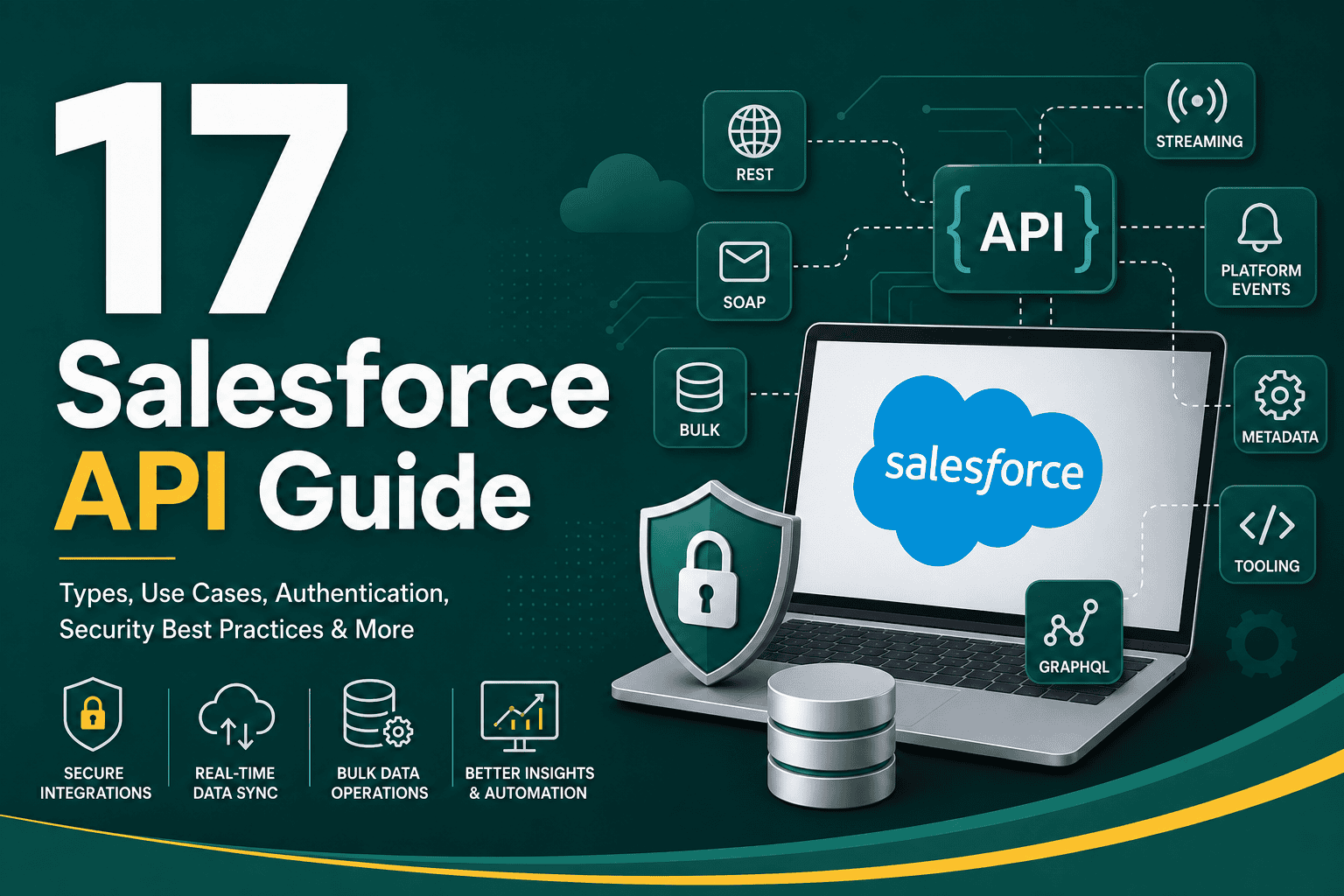
Salesforce API Guide This Salesforce API guide explain...
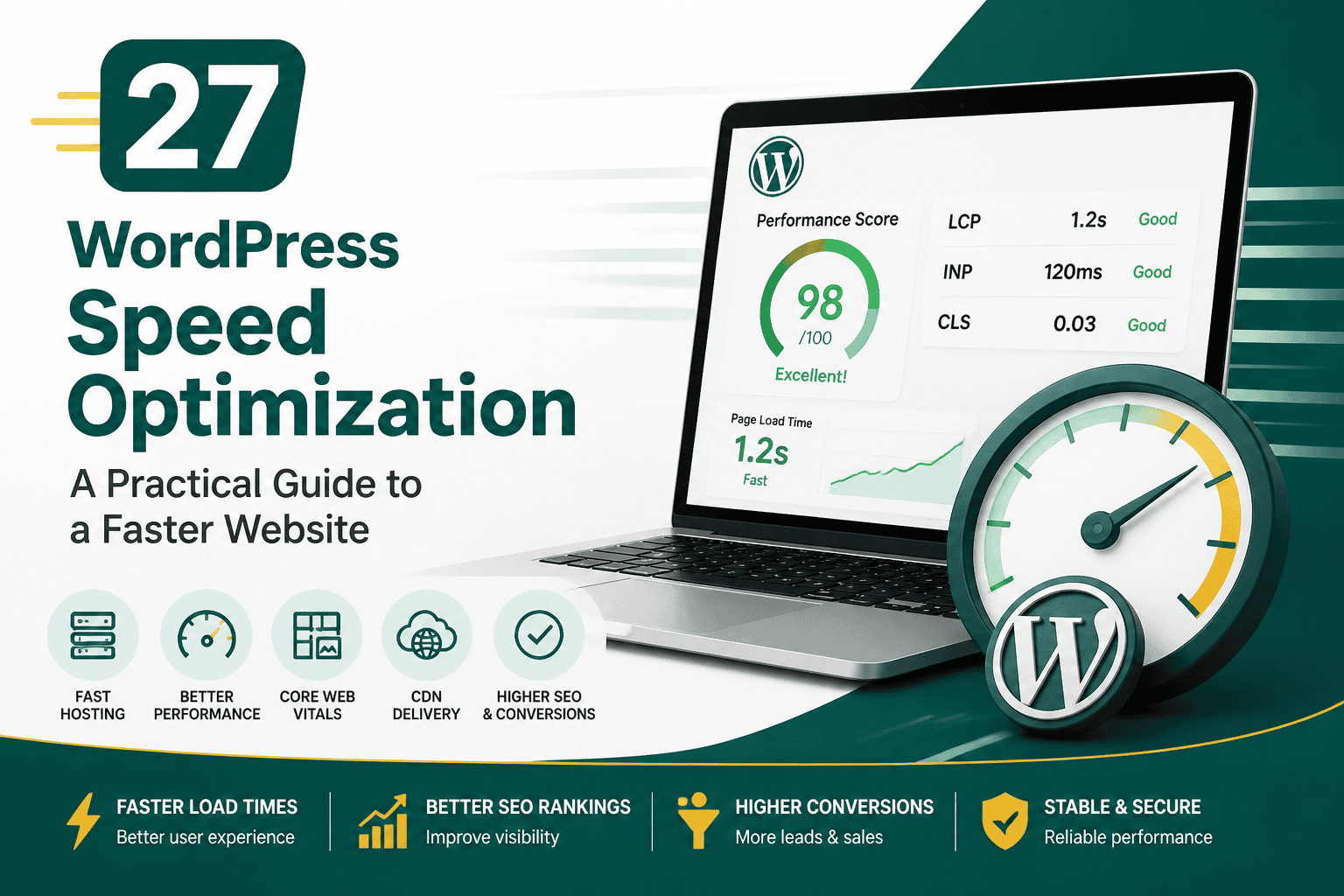
WordPress speed optimization is the process of improving how quickly your WordPress website loads, responds, and feels to visitors. A fast website creates a better user experience, supports stronger SEO performance, improves conversion rates, and reduces the chance that visitors leave before engaging with your content, products, or services.
Speed matters because users expect pages to load quickly on desktop and mobile. Search engines also use page experience signals, including Core Web Vitals, as part of how they evaluate real-world usability. If your WordPress site is slow, bloated, or poorly hosted, even strong content and good design may underperform.
This guide explains the most important areas of WordPress speed optimization, including hosting, themes, plugins, caching, images, databases, CDNs, Core Web Vitals, and ongoing maintenance.
A slow WordPress website can hurt your business in several ways. Visitors may abandon pages before they load, search engines may crawl fewer URLs, paid ad traffic may convert poorly, and ecommerce customers may leave during checkout. Speed is not just a technical metric; it directly affects marketing, sales, trust, and revenue.
For business websites, WordPress speed optimization can help improve:
The goal is not simply to chase a perfect score in every testing tool. The real goal is to make your website fast, stable, easy to use, and efficient for real visitors.
Hosting is the foundation of WordPress speed optimization. If your hosting environment is slow, overcrowded, outdated, or poorly configured, front-end optimizations can only help so much. A fast WordPress site usually starts with a hosting provider that offers strong server resources, modern PHP versions, efficient caching, reliable uptime, and good support.
Shared hosting can work for small websites with low traffic, but growing businesses often benefit from managed WordPress hosting, VPS hosting, cloud hosting, or dedicated resources. The right choice depends on your website size, traffic volume, plugin stack, ecommerce needs, and technical support requirements. For a deeper breakdown of hosting types and selection criteria, review this WordPress hosting guide.
Hosting should be evaluated before making smaller performance adjustments. If your server response time is poor, optimizing images and CSS may not fully solve the problem.
Before optimizing your WordPress site, measure its current performance. This gives you a baseline and helps you prioritize the biggest issues instead of guessing. Different tools measure different things, so use a combination of lab testing and real-user data when possible.
When reviewing test results, focus on the issues that affect real users most: slow server response, large images, render-blocking files, excessive JavaScript, layout shifts, and third-party scripts.
Core Web Vitals are a set of Google performance metrics that evaluate how users experience your website. They are especially important for WordPress speed optimization because many WordPress sites struggle with heavy themes, page builders, plugins, large images, and scripts.
The three main Core Web Vitals are:
If you want a more detailed explanation of these metrics and how to improve them, this Core Web Vitals guide explains LCP, INP, and CLS in practical terms.
Your theme has a major impact on website speed. Some WordPress themes load excessive CSS, JavaScript, fonts, sliders, animation libraries, template features, and design options even if you do not use them. This creates unnecessary bloat.
A lightweight theme should provide the layout flexibility you need without loading unnecessary assets across every page. If your website uses a visual builder, the builder’s output also matters. Clean HTML, minimal CSS, and efficient JavaScript are important for long-term performance.
For developers and site owners comparing builder approaches, understanding why Oxygen Builder is faster can help clarify how cleaner front-end output and reduced theme bloat can support better speed and SEO outcomes.
Plugins are one of WordPress’s biggest strengths, but they are also one of the most common causes of slow websites. Every plugin can add database queries, scripts, stylesheets, admin overhead, background tasks, or external API calls. Some plugins are well-coded and efficient, while others can seriously degrade performance.
WordPress speed optimization does not mean avoiding plugins completely. It means choosing the right plugins, removing unnecessary ones, and avoiding duplicate functionality. For example, using multiple SEO plugins, multiple optimization plugins, or several analytics scripts can create conflicts and performance problems.
If your plugin list has grown over time, use this guide to WordPress plugins you actually need to evaluate which tools are essential and which may be slowing your site down.
Be careful when deleting plugins on a live site. Some plugins store important settings, shortcodes, custom fields, forms, or ecommerce data. Always back up your site before removing major plugins.
Caching is one of the most effective WordPress speed optimization techniques. Instead of generating every page from scratch for every visitor, caching stores prebuilt versions of pages or resources so they can be delivered faster.
Many managed WordPress hosts include server-level caching, which is often faster than plugin-only caching. If you use a caching plugin, make sure it does not conflict with your hosting provider’s built-in caching system.
Caching can produce dramatic improvements, but incorrect caching can break dynamic functionality. Always test important user journeys after making cache changes.
Large images are one of the most common causes of slow WordPress pages. Many websites upload images directly from cameras, designers, or stock photo sites without resizing or compressing them. A single oversized hero image can slow down the entire page.
For hero images, balance quality and file size carefully. Since hero images often affect Largest Contentful Paint, they should be properly sized, compressed, and prioritized when needed.
A content delivery network, or CDN, helps deliver your website’s static files from servers located closer to your visitors. Instead of every visitor downloading assets from your origin server, a CDN caches files across a network of global edge locations.
This can reduce latency, improve loading speed for international audiences, reduce origin server load, and provide additional security benefits. CDNs are especially helpful for websites with global traffic, image-heavy pages, WooCommerce stores, media libraries, or seasonal traffic spikes.
If you need a practical explanation of how CDNs work and why they matter, this article has CDN explained in detail.
A CDN works best when combined with optimized hosting, proper caching, compressed assets, and clean site architecture.
Many WordPress sites load far more CSS and JavaScript than they need. Themes, plugins, analytics tools, form builders, sliders, chat widgets, and page builders can all add files. These files may block rendering, delay interactivity, or increase the amount of data users must download.
Be cautious with aggressive optimization settings. Combining, deferring, or delaying scripts can break menus, forms, sliders, tracking, checkout pages, or interactive features. Test carefully after each change.
Web fonts can improve design, but they can also slow down rendering if not handled correctly. Loading too many font families, weights, or external font files increases requests and can delay visible text.
Font optimization is especially important for websites with large hero headings or text-heavy above-the-fold layouts.
WordPress stores content, settings, plugin data, comments, revisions, transients, metadata, and user information in its database. Over time, the database can become cluttered with post revisions, spam comments, expired transients, deleted plugin tables, and unnecessary autoloaded options.
A bloated database can slow down admin screens, searches, product pages, dynamic queries, and backend workflows. For small brochure websites, database optimization may offer modest improvements. For large blogs, membership sites, WooCommerce stores, or high-traffic sites, it can be more important.
Database work should be handled carefully. Always create a complete backup before deleting database records or plugin tables.
Server response time, often measured as Time to First Byte, affects how quickly the browser receives the first piece of data from your website. If server response is slow, the entire page load process starts late.
Improving server response may require better hosting, server-level caching, database cleanup, plugin audits, PHP upgrades, object caching, or reducing external dependencies.
WooCommerce stores often need additional speed optimization because ecommerce websites are more dynamic than standard brochure websites. Product filters, carts, checkout pages, payment gateways, shipping calculations, customer accounts, order data, and tracking scripts can all affect performance.
For online stores, speed should be evaluated alongside usability and revenue performance. A faster checkout experience can support better conversion rates, especially on mobile. If your store needs broader improvements beyond speed, this guide to WooCommerce conversion optimization covers practical ways to turn more visitors into customers.
Third-party scripts are often overlooked during WordPress speed optimization. These include analytics tags, ad pixels, chat widgets, heatmaps, CRM forms, social embeds, video embeds, review widgets, and tracking tools. Each script can add network requests, JavaScript execution time, and potential delays.
Marketing tools are valuable, but too many scripts can make a site feel slow. Balance measurement needs with page experience.
File compression reduces the size of text-based assets such as HTML, CSS, JavaScript, and SVG files before they are transferred to the browser. Most modern hosting environments support Gzip or Brotli compression.
Brotli often provides better compression than Gzip, especially for text assets. Enabling compression can improve load times without changing your website design or content.
Images and videos should be optimized separately because they already use their own compression formats.
Modern web protocols can improve how efficiently browsers and servers transfer files. HTTP/2 allows multiplexing, which helps browsers request multiple resources over a single connection. HTTP/3 builds on newer transport technology and can improve reliability and performance in certain network conditions.
Your hosting provider and CDN often determine whether HTTP/2 or HTTP/3 is available. For most WordPress site owners, the practical step is to choose hosting and CDN services that support modern protocols automatically.
To understand the difference between these technologies, see this comparison of HTTP/2 vs HTTP/3.
Mobile performance is critical because many visitors use slower connections, less powerful devices, and smaller screens. A site that feels fast on a high-end desktop computer may still be slow on mobile.
Mobile speed is especially important for local businesses, ecommerce stores, lead generation campaigns, and content websites where users may arrive from search, social media, or ads.
Speed optimization is not only about front-end visitors. A slow WordPress admin area can waste time for editors, marketers, store managers, and developers. Admin slowness is often caused by heavy plugins, database bloat, background tasks, object cache issues, or insufficient hosting resources.
If the admin area is consistently slow, investigate server logs, plugin performance, cron jobs, and database queries.
Page builders can help non-technical users create flexible layouts, but some builders generate bloated markup, excessive wrapper elements, large CSS files, and heavy JavaScript. This does not mean every page builder site must be slow, but the way a site is built matters.
A well-built page builder site can perform well, but performance should be part of the design and development process from the beginning.
WordPress core, themes, and plugins should be updated regularly. Updates often include security patches, compatibility improvements, bug fixes, and performance enhancements. Running outdated software can create speed, stability, and security problems.
For business-critical websites, avoid making major updates directly on production without testing.
Lazy loading delays the loading of images, videos, and iframes until they are needed. This can reduce initial page weight and improve perceived speed. WordPress includes native lazy loading for images, and many optimization plugins add extra controls.
However, lazy loading should not be applied blindly. The main above-the-fold image, especially the LCP image, usually should not be lazy loaded because that can delay the most important visible content.
Lazy loading is powerful when applied selectively and tested properly.
Redirects add extra steps before a page or file loads. Some redirects are necessary, especially after URL changes, migrations, or HTTPS setup. But long redirect chains can slow down users and waste crawl efficiency.
Broken requests also hurt performance because the browser still spends time trying to load missing files. These may include deleted images, old CSS files, broken fonts, or missing scripts.
Clean request paths help browsers load pages more efficiently and make the site easier to maintain.
Preloading tells the browser to prioritize important files early in the loading process. This can help improve LCP when used correctly. Common preload candidates include hero images, critical fonts, and key CSS files.
Preloading too many resources can backfire because it competes for bandwidth and may delay other important assets. Use preload selectively.
After adding preload rules, test performance to confirm they help rather than hurt.
Videos can significantly slow down WordPress pages, especially when embedded from third-party platforms or uploaded directly without optimization. A YouTube or Vimeo embed can load multiple scripts and requests before the user even clicks play.
Video can be highly effective for engagement, but it should be implemented in a way that does not damage page speed.
Use this checklist to review the most important speed optimization tasks:
Many website owners try to improve speed by installing multiple optimization plugins and enabling every setting at once. This can create conflicts, broken layouts, missing scripts, caching problems, and inaccurate test results.
A careful, staged approach is better than aggressive changes made all at once.
WordPress speed optimization is not a one-time task. Websites change over time as you add pages, plugins, images, tracking tools, forms, products, integrations, and design updates. Each change can affect performance.
For most business websites, review speed at least quarterly. For WooCommerce stores, high-traffic websites, or lead generation sites with active campaigns, monthly performance reviews may be more appropriate.
Speed should be part of your website maintenance process, not an emergency project after rankings or conversions decline.
WordPress speed optimization is one of the highest-impact improvements you can make to a website. A faster site improves user experience, supports SEO, increases trust, and can help more visitors become leads or customers.
The best results usually come from improving the full performance stack: hosting, caching, theme quality, plugin discipline, image optimization, database health, CDN delivery, Core Web Vitals, and ongoing maintenance. Instead of relying on one plugin or one score, focus on building a lean, stable, and user-friendly WordPress website.
When approached strategically, WordPress speed optimization becomes more than a technical task. It becomes a business advantage that supports better visibility, stronger engagement, and improved digital performance over time.