August 12, 2026
Salesforce Deployment Best Practices: 20-Step Checklist
Salesforce Deployment Best Practices Salesforce deploy...
Understanding Salesforce user roles is essential for building a secure, scalable, and well-organized CRM. Roles help control record visibility, support management reporting, and define how data access flows through your organization. If you are trying to understand how Salesforce security works, this guide provides Salesforce user roles explained in practical terms, including what roles do, how they differ from profiles and permission sets, and how to design a role hierarchy that matches your business.
Salesforce is powerful because it can centralize customer data, sales activity, service records, marketing information, and business processes in one place. That flexibility is one of the reasons many organizations choose the platform, as explained in this overview of why businesses choose Salesforce CRM. However, with that flexibility comes the need for thoughtful access management. User roles are one of the main tools administrators use to make sure the right people can see the right records at the right time.
Salesforce user roles define a user’s position in the role hierarchy and help determine which records they can access. In simple terms, roles answer the question: “Where does this user sit in the organization’s data visibility structure?”
A user role does not usually define what a user can do inside Salesforce. Instead, it helps define which records the user can see, especially when organization-wide defaults are set to private or restricted. For example, a sales representative may only see accounts and opportunities they own, while their sales manager may see the records owned by everyone on their team.
Roles are especially important for sales teams, service teams, regional teams, account management structures, and any company that needs controlled visibility across teams, territories, departments, or management levels.
One of the most common sources of confusion in Salesforce administration is the difference between roles, profiles, and permission sets. They all relate to user access, but they serve different purposes.
Roles control record-level visibility through the role hierarchy. They help determine which records users can access based on ownership and their position in the organization. For example, a regional sales director may be able to view opportunities owned by sales managers and representatives below them in the hierarchy.
Profiles define a user’s baseline permissions. They control what users can do in Salesforce, such as whether they can create, read, edit, or delete records for specific objects. Every Salesforce user must have one profile.
Permission sets grant additional permissions to users without changing their profile. They are useful when a user needs access beyond their standard profile. For example, a sales user may need temporary access to a custom reporting object, or a support manager may need additional administrative permissions.
A helpful way to remember the difference is this: profiles and permission sets control what a user can do, while roles help control which records a user can access.
The Salesforce role hierarchy is a structure that represents levels of data visibility in your organization. Users higher in the hierarchy can often access records owned by users below them, depending on your sharing settings.
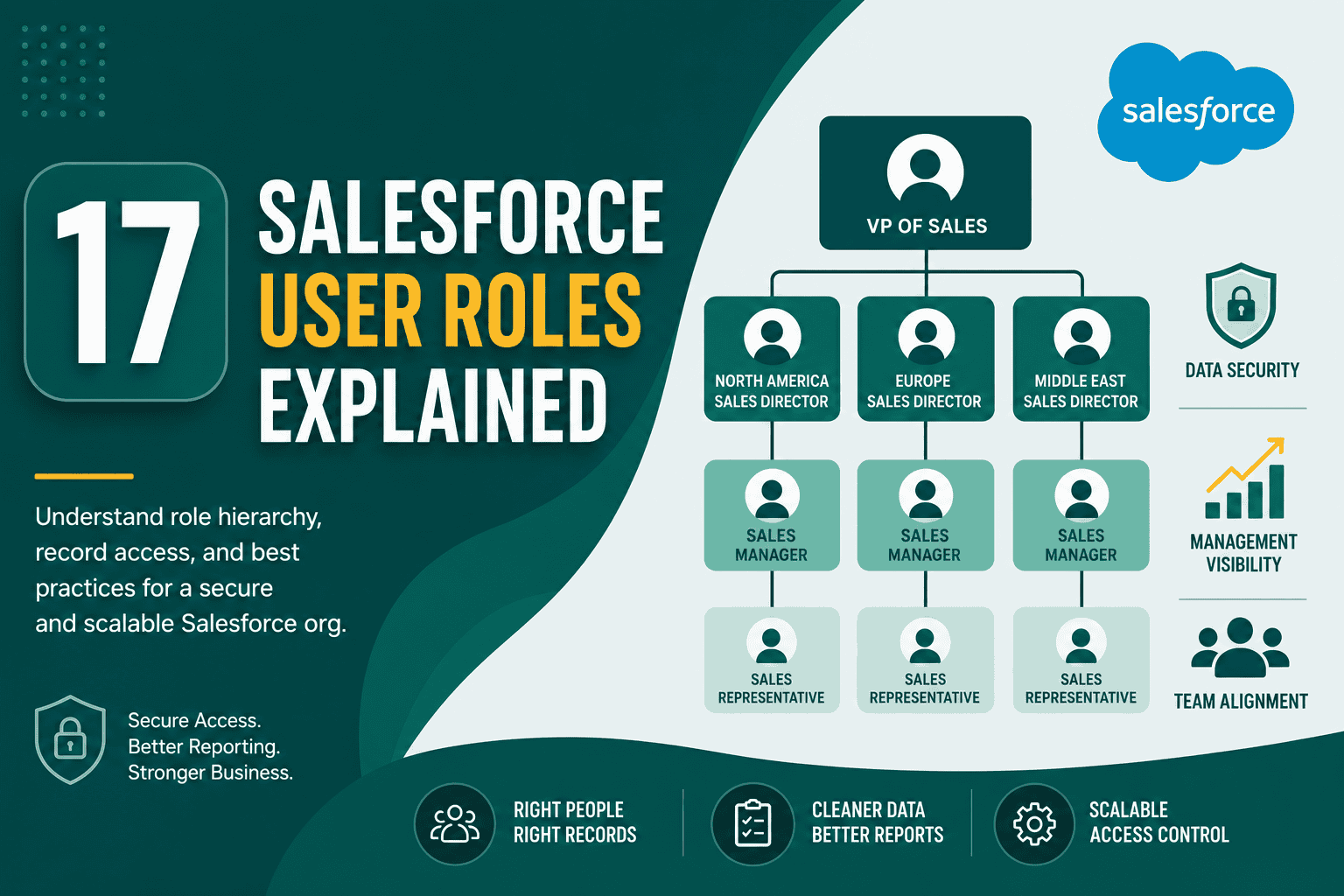
For example, a basic sales role hierarchy might look like this:
In this structure, the Vice President of Sales may be able to see records owned by regional directors, sales managers, and sales representatives. A sales manager may be able to see records owned by representatives on their team, but not records from another region unless additional sharing rules are configured.
The role hierarchy does not need to match your company’s HR org chart exactly. Instead, it should reflect how record access and reporting visibility need to work inside Salesforce.
Salesforce user roles are important because they help protect sensitive data while still allowing managers and teams to work efficiently. Without a clear role structure, users may see too much data, too little data, or inconsistent information across reports and dashboards.
Roles help limit record visibility so users only see records that are relevant to their job. This is especially important for organizations handling sensitive account information, customer details, pricing, contracts, or regulated data.
Managers often need visibility into the activities, accounts, leads, and opportunities owned by their direct reports. The role hierarchy supports roll-up visibility, helping leadership monitor performance and pipeline without giving every user broad access to all records.
When roles are structured correctly, sales and service teams can work from the right records without unnecessary clutter. This improves productivity and reduces confusion about ownership, accountability, and customer follow-up.
As your organization grows, roles make it easier to manage access by team, region, department, or business unit. A well-designed hierarchy can support new teams and processes without requiring constant manual sharing adjustments.
Salesforce roles should be designed around business visibility requirements. The best structure depends on how your teams are organized and how records should be shared. Below are common role examples.
In this structure, sales leadership can review team performance, while individual sales users may only access their own leads, accounts, contacts, and opportunities unless sharing rules provide broader access.
Support roles may be used to control visibility into cases, accounts, escalations, and service records. Managers may need access to all cases handled by their team, while agents may only need access to assigned cases.
Regional role structures are useful when teams are separated by geography and managers need visibility into records within their region only.
This structure works well for organizations with multiple divisions, brands, service lines, or operating units inside one Salesforce org.
To understand Salesforce user roles properly, you also need to understand organization-wide defaults, often called OWD. These settings define the baseline level of access users have to records they do not own.
For example, if the organization-wide default for opportunities is set to private, users can only see opportunities they own, opportunities shared with them, or opportunities they can access through the role hierarchy. If the default is public read/write, roles matter less for that object because most users can already view and edit records.
Common organization-wide default settings include:
Roles become most important when object access is restricted. In a private sharing model, the role hierarchy is a key part of expanding access upward to managers and executives.
Sharing rules extend access beyond the role hierarchy. They are useful when users need access to records owned by users who are not below them in the hierarchy.
For example, a sales operations team may need access to opportunities across all regions, even though they are not managers in the sales hierarchy. A sharing rule can grant that team access without changing the role hierarchy.
Common use cases for sharing rules include:
Roles and sharing rules work together. Roles define vertical access through the hierarchy, while sharing rules provide horizontal or exception-based access across teams.
Creating a role in Salesforce is usually handled by a Salesforce administrator. The exact navigation may vary depending on your Salesforce setup, but the general process is straightforward.
Before creating roles in production, it is a good idea to test structural changes in a non-production environment. A sandbox lets administrators test role hierarchy changes, sharing rules, automations, and reporting impact safely. For a deeper explanation of testing environments, refer to this Salesforce sandbox guide.
A strong role hierarchy should be simple, scalable, and aligned with real access requirements. Overcomplicated role structures can become difficult to maintain and may create reporting or visibility issues.
Do not create a role for every job title unless each job title requires different record visibility. Salesforce roles are not meant to be a complete HR chart. They should represent how data access flows through the organization.
A deeply nested role hierarchy can be difficult to understand and maintain. Start with the minimum number of roles required to support visibility and reporting needs. Add complexity only when there is a clear business reason.
Avoid using roles to solve permission problems. If a user needs additional object permissions, system permissions, or app access, a permission set is usually the better solution. Roles should primarily address record visibility.
Role hierarchies should be reviewed when teams restructure, regions change, departments merge, or new business units are added. Outdated roles can lead to inappropriate access or reporting gaps.
Clear documentation helps administrators understand why each role exists. Include the role’s purpose, who should be assigned to it, what records it affects, and any related sharing rules.
Changing roles can affect record access, reports, dashboards, queues, forecasts, and automations. Always test major changes before deploying them to production, especially in complex Salesforce environments.
Even experienced teams can make mistakes when designing roles. Understanding these issues early can help prevent security and maintenance problems.
One of the most common mistakes is creating a role for every position in the company. This can make administration harder and create unnecessary complexity. Only create distinct roles when users need distinct record visibility.
Roles and profiles solve different problems. If a user cannot create a record, edit a field, access an object, or use a feature, the issue is likely related to profile or permission set settings, not the user’s role.
Some teams try to force every access requirement into the role hierarchy. This can lead to an unnatural structure. If users need cross-team access, sharing rules, teams, territories, or manual sharing may be better options.
Users change roles, teams reorganize, and business rules evolve. If access is not reviewed regularly, users may retain visibility they no longer need. Regular access reviews help maintain strong security.
Major changes to roles and sharing settings should be tested first. Even a small role hierarchy change can affect many records, reports, and users. Testing reduces the risk of unexpected access issues.
Roles can have a major impact on reporting. Managers often view reports based on records owned by users below them in the hierarchy. If roles are not structured correctly, reports may show incomplete or inaccurate data.
For example, a regional manager may expect to see all opportunities from their region. If some representatives are assigned to the wrong role, their opportunities may not appear in the regional manager’s dashboard. Similarly, executives may miss key pipeline data if reporting visibility does not align with the hierarchy.
When designing roles, consider how users will filter and view reports by team, region, manager, business unit, and ownership. A role hierarchy should support operational visibility as well as security.
Salesforce forecasting often depends on role hierarchy. Sales managers need to see forecast data from users below them, and executives need roll-up visibility across teams. If your sales organization uses collaborative forecasting, role structure becomes even more important.
Before enabling or changing forecasting, review the role hierarchy carefully. Make sure sales users are assigned correctly and that management levels reflect how forecasts should roll up.
Roles can also affect integrated systems, especially when integrations depend on record ownership, visibility, or user-based access. For example, an integration that syncs account records, support cases, or sales opportunities may behave differently depending on the access level of the integration user.
If Salesforce is connected to ERP, marketing automation, ecommerce, data warehouse, or customer support systems, role and sharing design should be considered as part of the broader architecture. This Salesforce integration guide explains how connected systems should be planned carefully to support reliable data movement and business processes.
Not every Salesforce user technically needs a role, but many users should have one if record visibility, reporting, or hierarchy-based access matters. In organizations with private sharing models, assigning users to the correct role is usually essential.
Some users, such as certain system administrators or integration users, may not need a business role in the same way sales or support users do. However, every user should still be reviewed carefully to determine whether their role assignment supports security and operational needs.
You should update Salesforce user roles when your business structure or access requirements change. Common triggers include:
Role updates should be part of your user management and governance process. When employees join, move, or leave the organization, their Salesforce access should be reviewed promptly.
Before building or changing roles, take time to plan the hierarchy. A thoughtful design will reduce future maintenance and help avoid security gaps.
Imagine a company with three sales regions: North America, Europe, and Middle East. Each region has sales representatives, sales managers, and a regional director. The global VP of Sales needs access to all sales data, each regional director needs access only to their region, and each sales manager needs access only to their team.
A role hierarchy could be structured like this:
If opportunities are private, representatives can see their own opportunities. Managers can see opportunities owned by their team. Regional directors can see opportunities in their region. The VP of Sales can see all opportunities across the sales organization. If finance needs access to closed-won opportunities across all regions, that should likely be handled with a sharing rule rather than placing finance inside the sales role hierarchy.
Salesforce user roles are a core part of record-level security and management visibility. They help determine who can see which records based on hierarchy, ownership, and sharing settings. When designed well, roles support secure data access, accurate reporting, better forecasting, and smoother team operations.
The most important point is that Salesforce roles should be built around data visibility, not simply job titles. Use profiles and permission sets to control what users can do, and use roles, sharing rules, and related security tools to control which records users can access. With careful planning, testing, and ongoing governance, your Salesforce role hierarchy can remain secure, scalable, and aligned with the way your business works.