WooCommerce Store Checklist
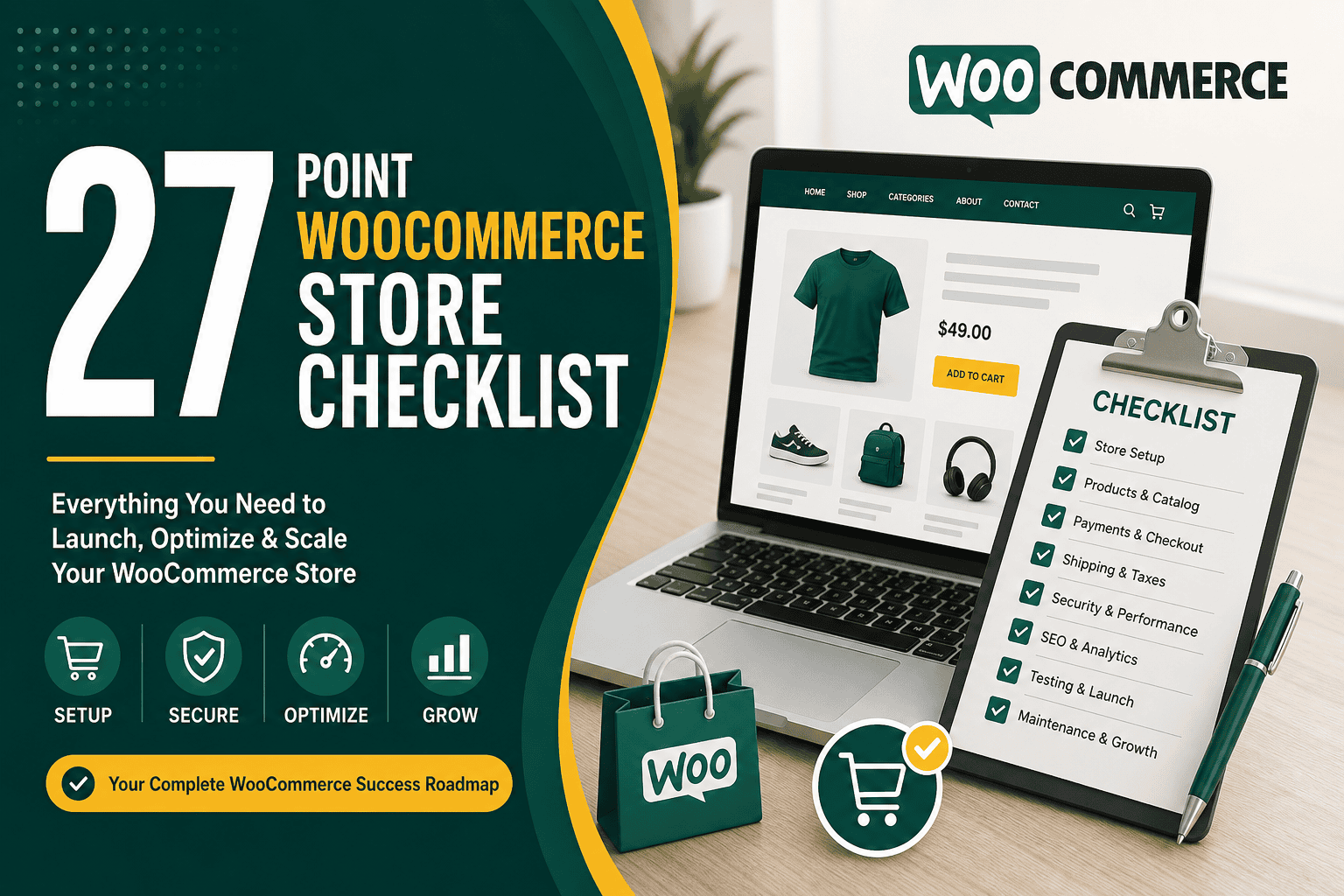
A practical woocommerce store checklist helps you launch, audit, and improve your online store with fewer mistakes. WooCommerce is flexible and powerful, but a successful store depends on much more than installing the plugin. You need the right hosting, product structure, payment setup, shipping rules, security, performance, analytics, SEO, and post-launch maintenance.
This WooCommerce store checklist is designed for business owners, ecommerce managers, developers, and marketers who want a structured way to review a WooCommerce store before launch or improve an existing one. Use it as a step-by-step guide to make sure your store is ready to sell, scale, and support customers properly.
1. Define Your Store Goals Before Building
Before you start configuring WooCommerce, clarify what your store needs to achieve. A small catalog selling simple products has very different requirements from a large ecommerce website with subscriptions, custom pricing, wholesale customers, multilingual content, or integrations with CRM and accounting systems.
- Define your target customers and regions.
- List the product types you will sell: simple, variable, digital, subscription, bundled, or custom products.
- Decide whether you need customer accounts, guest checkout, wholesale pricing, memberships, or subscriptions.
- Identify your required payment methods and shipping zones.
- Set clear launch goals such as revenue, conversion rate, average order value, and customer acquisition cost.
If you are still planning your budget, review the factors that affect WooCommerce development cost so you can estimate what is required for design, development, hosting, plugins, security, and ongoing support.
2. Choose Reliable WordPress and WooCommerce Hosting
Hosting is one of the most important items on any WooCommerce store checklist. Ecommerce stores require more resources than basic brochure websites because they handle carts, customer sessions, checkout processes, payment responses, inventory updates, and logged-in users.
Hosting checklist
- Use hosting optimized for WordPress and WooCommerce.
- Choose a server location close to your primary customer base.
- Confirm that the hosting plan supports enough CPU, memory, and database resources.
- Make sure SSL certificates are included and easy to renew.
- Use automatic daily backups with easy restore options.
- Check uptime guarantees and support availability.
- Confirm that staging environments are available for safe testing.
- Avoid very cheap shared hosting for serious ecommerce projects.
For a deeper breakdown of hosting options, performance considerations, and selection criteria, use this WordPress hosting guide before choosing your WooCommerce infrastructure.
3. Install WordPress and WooCommerce Correctly
Once your hosting is ready, install WordPress and WooCommerce carefully. A clean setup reduces future technical issues and makes the store easier to maintain.
Basic setup checklist
- Install the latest stable version of WordPress.
- Install the official WooCommerce plugin.
- Set your site title, timezone, language, and permalink structure.
- Configure WooCommerce store address, currency, selling locations, and shipping countries.
- Delete unused default themes, plugins, demo content, and sample pages.
- Create essential pages such as Shop, Cart, Checkout, My Account, Privacy Policy, Terms and Conditions, Returns, and Contact.
- Make sure WooCommerce pages are correctly assigned in the WooCommerce settings.
A clean technical foundation helps prevent plugin conflicts, checkout errors, and performance problems later.
4. Select a Fast, Lightweight Theme or Builder Setup
Your WooCommerce theme affects speed, design flexibility, product page layout, mobile usability, and conversion rate. Avoid bloated themes with dozens of bundled features you do not need. A lean, well-coded theme or custom build usually performs better and is easier to optimize.
Theme and design checklist
- Choose a theme that officially supports WooCommerce.
- Test product pages, category pages, cart, checkout, and account pages.
- Make sure the design is responsive on mobile, tablet, and desktop.
- Use consistent typography, spacing, buttons, and brand colors.
- Keep navigation simple and product discovery easy.
- Avoid excessive sliders, animations, and heavy scripts.
- Use a child theme or safe customization method if editing templates.
If performance and code control are priorities, you may want to understand why Oxygen Builder is faster than many traditional visual builders when implemented properly.
5. Configure Store Settings Properly
WooCommerce includes many settings that directly affect how customers buy from you. Review these before adding too many products or launching campaigns.
General WooCommerce settings checklist
- Set your selling locations and shipping locations.
- Choose the correct default customer location setting.
- Configure your store currency, currency position, thousand separator, decimal separator, and number of decimals.
- Enable or disable coupons based on your promotion strategy.
- Decide whether taxes are enabled.
- Review account creation options and guest checkout settings.
- Customize email sender name and address.
- Check all WooCommerce system status warnings.
Small configuration errors can lead to incorrect taxes, failed payments, missing shipping options, or customer confusion at checkout.
6. Build a Clear Product Catalog Structure
A well-organized catalog improves SEO, user experience, internal search, filtering, and conversion rates. Do not upload products randomly. Plan your structure first.
Catalog checklist
- Create logical product categories and subcategories.
- Use product tags only when they add real value.
- Define attributes such as size, color, material, brand, model, flavor, or compatibility.
- Use variable products for items with variations.
- Avoid creating separate products when variations would be more user-friendly.
- Write unique product descriptions instead of copying manufacturer text.
- Use consistent product naming conventions.
- Set SKUs where inventory tracking, fulfillment, or accounting requires them.
Product page checklist
- Add a clear product title.
- Write a short description that explains the main benefit.
- Write a detailed description with specifications, use cases, materials, dimensions, compatibility, or care instructions.
- Upload high-quality product images.
- Add image alt text where appropriate.
- Set regular price and sale price correctly.
- Configure stock status and inventory rules.
- Add related products, upsells, or cross-sells where relevant.
- Preview the product page on mobile.
7. Set Up Payments and Checkout
Checkout is the most important conversion point on your WooCommerce store. A complicated or unreliable checkout can waste advertising spend and lose customers who were ready to buy.
Payment checklist
- Choose payment gateways that your customers trust.
- Common options include credit cards, debit cards, PayPal, Apple Pay, Google Pay, bank transfer, cash on delivery, or local payment methods.
- Verify that your payment gateway supports your business country and currency.
- Complete merchant account verification before launch.
- Enable test mode and run several test transactions.
- Check successful payment, failed payment, refund, and cancellation flows.
- Confirm that order statuses update correctly after payment.
- Review payment gateway fees and settlement timelines.
Checkout checklist
- Allow guest checkout if it fits your business model.
- Remove unnecessary checkout fields.
- Display shipping costs clearly before final payment where possible.
- Make coupon fields easy to use but not distracting.
- Show accepted payment methods clearly.
- Include trust signals such as secure checkout messaging, return policy links, and support contact details.
- Test checkout on mobile, tablet, and desktop.
- Test checkout using different browsers.
8. Configure Shipping, Delivery, and Fulfillment
Shipping can be simple or complex depending on what you sell and where you sell it. Incorrect shipping rules are one of the most common WooCommerce launch problems.
Shipping checklist
- Create shipping zones for each region you serve.
- Set shipping methods for each zone, such as flat rate, free shipping, local pickup, or live carrier rates.
- Configure rate rules based on weight, cart total, product class, or destination if needed.
- Set free shipping thresholds carefully to protect profit margins.
- Create shipping classes for heavy, fragile, oversized, or special products.
- Test shipping options using multiple addresses.
- Clearly display delivery timelines and restrictions.
- Decide how customers will receive tracking numbers.
Fulfillment checklist
- Define who receives new order notifications.
- Set order processing responsibilities.
- Connect fulfillment, warehouse, or shipping label tools if needed.
- Create a process for refunds, exchanges, failed deliveries, and damaged items.
- Document how inventory updates are handled.
9. Configure Taxes and Legal Pages
Tax setup depends on your location, business model, products, and customer regions. WooCommerce can calculate taxes, but you must configure rules correctly or use a reliable tax automation tool. For legal and tax decisions, consult a qualified professional in your jurisdiction.
Tax checklist
- Confirm whether prices should be entered inclusive or exclusive of tax.
- Set tax display rules for shop pages, cart, checkout, and emails.
- Create tax rates for applicable regions.
- Check whether shipping is taxable.
- Test tax calculations using customer addresses from different regions.
- Ensure invoices or receipts meet local requirements.
Legal page checklist
- Privacy Policy
- Terms and Conditions
- Refund and Returns Policy
- Shipping Policy
- Cookie Policy if applicable
- Contact page with support details
- Company information where legally required
10. Improve WooCommerce Store Security
Security is essential because WooCommerce stores handle customer data, payment processes, accounts, and order information. Even if payments are processed by a third-party gateway, your store still needs strong protection.
Security checklist
- Use HTTPS across the entire website.
- Use strong admin passwords and two-factor authentication.
- Limit admin access to only necessary users.
- Assign correct user roles for store managers, editors, and administrators.
- Keep WordPress, WooCommerce, themes, and plugins updated.
- Remove abandoned or unnecessary plugins.
- Use a reputable security plugin or server-level firewall.
- Enable malware scanning.
- Protect login pages from brute-force attacks.
- Back up the website daily and store backups off-server.
- Use secure payment gateways rather than storing card data directly.
Security is not a one-time launch task. It should be part of your ongoing WooCommerce maintenance process.
11. Optimize Website Speed and Core Web Vitals
Performance affects SEO, paid advertising results, user experience, and conversion rate. Slow WooCommerce stores often lose customers before they even reach checkout.
Speed checklist
- Use high-quality hosting.
- Compress and resize images before upload.
- Use modern image formats where appropriate.
- Enable caching carefully, while excluding cart, checkout, and account pages from full-page cache where necessary.
- Minimize unnecessary plugins and scripts.
- Optimize fonts and avoid loading too many font weights.
- Reduce unused CSS and JavaScript where possible.
- Optimize database tables and remove old transients.
- Use lazy loading for images below the fold.
- Test speed on real mobile connections, not only desktop tools.
To understand the performance metrics that matter most for SEO and user experience, review this Core Web Vitals guide, especially the sections on LCP, INP, and CLS.
CDN checklist
- Use a CDN if customers are located in multiple regions.
- Serve static assets such as images, CSS, and JavaScript through the CDN.
- Confirm that the CDN works correctly with WooCommerce dynamic pages.
- Test cart and checkout behavior after CDN setup.
- Use CDN caching rules carefully to avoid showing one customer’s cart or account content to another user.
If you are unsure how content delivery networks improve global loading speed, this article has CDN explained in practical terms for website owners and managers.
12. Set Up WooCommerce SEO
WooCommerce SEO helps your products and categories appear in search results. A store with weak SEO may depend too heavily on paid advertising, while a well-optimized store can attract long-term organic traffic.
SEO checklist
- Install a reputable SEO plugin.
- Create unique title tags and meta descriptions for important pages.
- Optimize product category pages with useful introductory content.
- Write unique product descriptions.
- Use clean, readable URLs.
- Set canonical URLs correctly, especially for filtered pages and product variations.
- Generate and submit an XML sitemap.
- Use schema markup for products, reviews, pricing, and availability where appropriate.
- Optimize image file names and alt text.
- Fix broken links and redirect discontinued product URLs properly.
- Avoid indexing low-value pages such as cart, checkout, and account pages.
Category page checklist
- Use clear category names based on how customers search.
- Add short, helpful category descriptions.
- Include relevant internal links to subcategories or popular products.
- Avoid duplicate category content.
- Make filters useful without creating index bloat.
13. Configure Analytics, Tracking, and Conversion Measurement
Without proper tracking, you cannot confidently improve your WooCommerce store. Analytics helps you understand where visitors come from, which products generate revenue, where users abandon checkout, and which marketing campaigns are profitable.
Analytics checklist
- Install Google Analytics 4 or another analytics platform.
- Enable ecommerce tracking.
- Track product views, add-to-cart events, checkout steps, purchases, revenue, and refunds.
- Set up Google Search Console.
- Install Meta Pixel if running Facebook or Instagram ads.
- Install Google Ads conversion tracking if running Google Ads.
- Use Google Tag Manager if you need flexible tracking management.
- Test tracking events before launch.
- Exclude internal traffic where possible.
- Confirm that purchase values, currency, transaction IDs, and item data are passed correctly.
If you advertise with Google Ads, this enhanced conversions guide explains how improved conversion measurement can help when browser-based tracking is limited.
14. Review Email Notifications and Customer Communication
WooCommerce sends transactional emails for orders, account activity, refunds, password resets, and other customer interactions. These emails must be accurate, branded, and deliverable.
Email checklist
- Customize WooCommerce email templates with your brand logo and colors.
- Check all customer email content for clarity.
- Set the correct sender name and sender address.
- Use SMTP or a transactional email service for better deliverability.
- Test new order, processing order, completed order, refunded order, failed order, and account emails.
- Make sure customer support contact details are included.
- Check email formatting on desktop and mobile.
- Avoid overly promotional content in essential transactional emails.
15. Set Up Customer Support and Store Policies
A WooCommerce store should make it easy for customers to get help before and after purchase. Clear support reduces abandoned carts, refund disputes, and negative reviews.
Support checklist
- Create a clear Contact page.
- Add support email, phone number, live chat, or contact form depending on your operations.
- Create an FAQ page for common product, delivery, payment, and return questions.
- Display return and refund policies before checkout.
- Make shipping timelines easy to find.
- Train support staff on order lookup, refunds, replacements, and escalation procedures.
- Create saved responses for common inquiries.
16. Install Only Essential WooCommerce Plugins
Plugins can extend WooCommerce, but too many plugins can slow your store, create conflicts, increase maintenance work, and introduce security risks. Use plugins only when they solve a real business or technical need.
Plugin checklist
- Use plugins from reputable developers.
- Check update frequency and compatibility with the latest WooCommerce version.
- Avoid plugins with poor reviews or abandoned support.
- Do not install multiple plugins that perform the same function.
- Test new plugins on staging before using them on the live store.
- Remove inactive plugins.
- Document plugin license keys and renewal dates.
Common plugin categories
- SEO
- Security
- Performance and caching
- Backups
- Payment gateways
- Shipping integrations
- Analytics and tracking
- Email marketing
- Product filters
- Subscriptions or memberships
- Reviews and social proof
17. Test the Full Customer Journey
Before launch, walk through your WooCommerce store like a real customer. Do not only test individual settings. Test the complete buying journey from discovery to order confirmation.
Customer journey checklist
- Visit the homepage from a mobile device.
- Navigate to a product category.
- Use search and filters.
- Open several product pages.
- Select product variations.
- Add products to cart.
- Apply and remove coupon codes.
- Estimate or view shipping options.
- Proceed to checkout.
- Place a test order using each payment method.
- Check confirmation page content.
- Check customer emails.
- Check admin order notifications.
- Refund a test order.
- Review analytics and conversion tracking.
Testing should happen on desktop, mobile, and tablet, using different browsers and customer scenarios.
18. Prepare for Launch
A WooCommerce launch should be controlled and planned. Avoid launching without final checks, backups, and rollback options.
Pre-launch checklist
- Turn off maintenance or coming soon mode when ready.
- Confirm SSL is active on all pages.
- Check that search engines are allowed to index the site.
- Submit your sitemap to search engines.
- Run a final broken link scan.
- Check all primary navigation links.
- Verify product prices and stock levels.
- Confirm payment gateways are in live mode.
- Place a real low-value test order if possible.
- Confirm transactional emails are delivered.
- Take a full website backup.
- Monitor server performance during launch.
- Have developer or technical support available during the launch window.
19. Create a Post-Launch Maintenance Plan
Your WooCommerce store checklist should not end at launch. Ecommerce websites require continuous monitoring, updates, optimization, and security maintenance.
Weekly checklist
- Review orders, failed payments, and checkout errors.
- Check website uptime and speed.
- Review plugin and theme updates.
- Check security logs and malware scans.
- Review customer support questions for recurring issues.
- Check analytics for traffic, conversion rate, revenue, and cart abandonment.
Monthly checklist
- Update WordPress, WooCommerce, plugins, and themes safely.
- Test the checkout process after updates.
- Review top-selling and low-performing products.
- Optimize product pages with weak conversion rates.
- Check Search Console for indexing or SEO issues.
- Review backup integrity and restore process.
- Audit unused plugins, media files, and database bloat.
Quarterly checklist
- Review hosting capacity and performance.
- Audit Core Web Vitals and page speed.
- Review your product catalog structure.
- Update policies, FAQs, and support documentation.
- Audit analytics and tracking accuracy.
- Review marketing performance and customer acquisition costs.
- Plan improvements for conversion rate optimization.
20. Improve Conversion Rate Over Time
After your WooCommerce store is stable, focus on improving conversion rate and average order value. Small improvements can create meaningful revenue growth, especially if you already have consistent traffic.
Conversion optimization checklist
- Improve product images and videos.
- Add reviews and testimonials.
- Make delivery information clear on product pages.
- Display return policy reassurance near checkout.
- Use product recommendations carefully.
- Improve category filters and search results.
- Reduce checkout friction.
- Test free shipping thresholds.
- Use abandoned cart recovery emails where appropriate.
- Analyze heatmaps and session recordings if privacy-compliant.
- A/B test important landing pages, offers, and checkout changes.
WooCommerce Store Checklist Summary
A complete WooCommerce store checklist should cover strategy, hosting, design, product setup, payments, shipping, taxes, security, SEO, performance, analytics, email, support, launch testing, and ongoing maintenance. WooCommerce gives you the flexibility to build a powerful ecommerce store, but that flexibility must be managed carefully.
Use this checklist before launch, after major updates, and during regular audits. A well-configured WooCommerce store is faster, safer, easier to manage, better for customers, and more capable of supporting long-term ecommerce growth.