July 21, 2026
WooCommerce Development Cost: 2026 Pricing Guide
WooCommerce Development Cost: Complete Pricing Guide f...
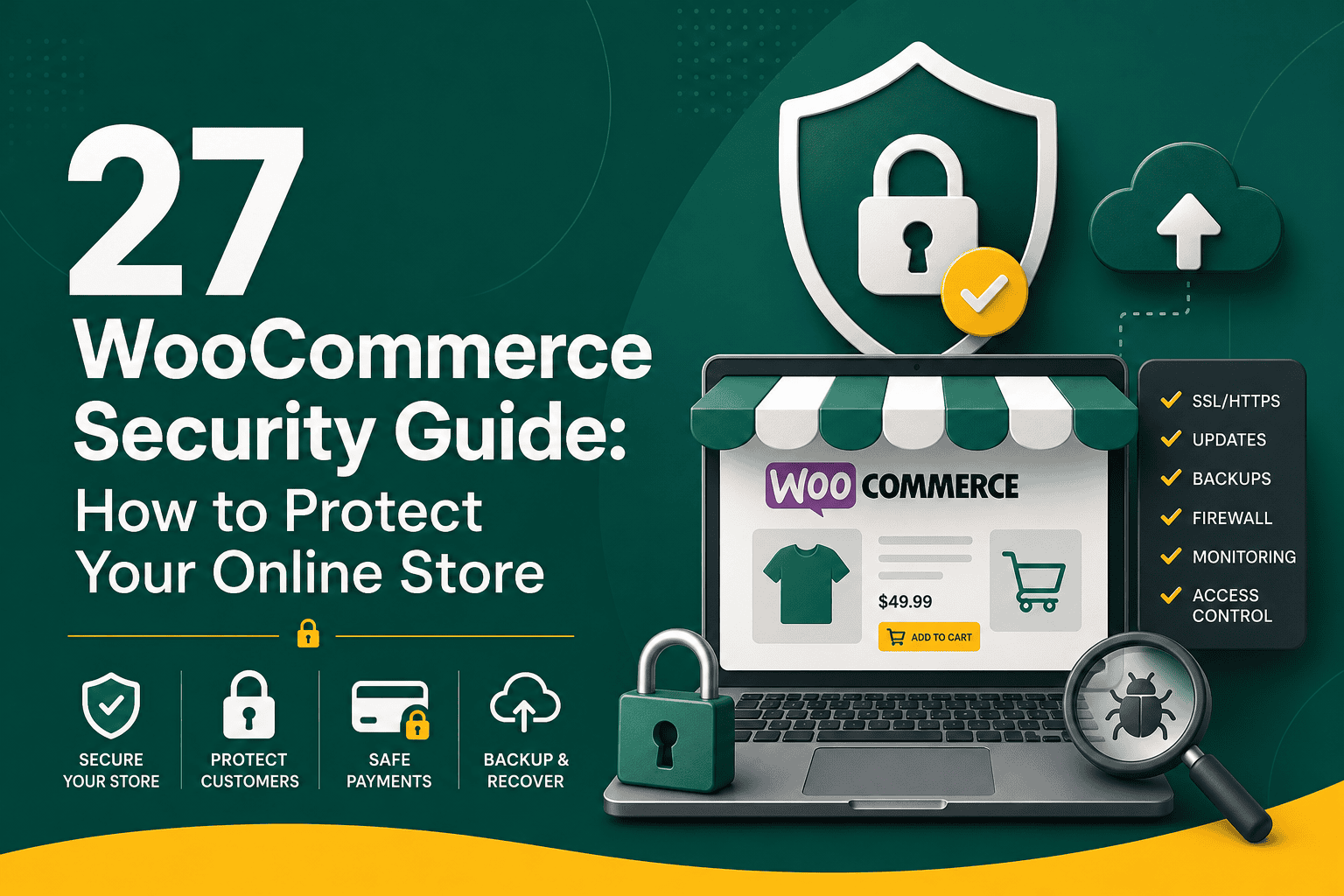
A practical woocommerce security guide is essential for any business that sells products, accepts payments, stores customer data, or depends on its online store for revenue. WooCommerce is powerful and flexible, but because it runs on WordPress and often connects with payment gateways, shipping tools, marketing platforms, analytics scripts, and third-party plugins, it must be managed carefully.
Security is not only about preventing hackers from accessing your site. It is also about protecting customer trust, reducing downtime, avoiding fraudulent activity, maintaining compliance, preserving search rankings, and keeping your business operational. A compromised WooCommerce store can lead to stolen customer information, suspicious redirects, payment issues, spam orders, lost revenue, blacklisting by search engines, and reputational damage.
This guide explains the most important WooCommerce security practices, from hosting and updates to user permissions, backups, payment security, malware protection, and ongoing monitoring.
WooCommerce stores are attractive targets because they often handle customer accounts, order histories, payment-related data, discount codes, admin access, and business-critical operations. Even if your store does not store full credit card numbers, it still processes sensitive customer information such as names, emails, addresses, phone numbers, and order details.
Security problems can affect your store in several ways:
Security should be part of your store strategy from the beginning. If you are still planning or auditing your ecommerce setup, a broader WooCommerce store checklist can help you review security alongside payments, shipping, analytics, performance, and launch readiness.
Your hosting environment is the foundation of WooCommerce security. Even a well-built store can be exposed if it runs on outdated, overloaded, poorly configured, or insecure hosting. Cheap shared hosting may be acceptable for a small brochure website, but ecommerce stores need stronger protection, better uptime, reliable backups, and fast support.
If your store is growing, hosting should not be selected based only on price. It directly affects security, speed, uptime, and customer experience. For a deeper look at choosing the right environment, review this WordPress hosting guide.
Every WooCommerce store must use SSL. SSL enables HTTPS, which encrypts data transferred between the customer’s browser and your website. This is especially important on login pages, account pages, checkout pages, and payment-related flows.
Without HTTPS, browsers may show security warnings, customers may abandon checkout, and payment providers may refuse to work properly. HTTPS is also a trust signal and a basic requirement for modern ecommerce.
Outdated software is one of the most common causes of WordPress and WooCommerce security incidents. Security vulnerabilities are regularly discovered in plugins, themes, WordPress core, and WooCommerce extensions. Developers release patches, but those patches only help if your site is updated.
However, WooCommerce updates should be handled carefully because ecommerce stores often rely on multiple plugins, payment gateways, custom templates, and integrations. A careless update can break checkout, shipping rules, product pages, or emails.
Plugins can strengthen your store, but they can also create vulnerabilities if they are poorly coded, abandoned, duplicated, or unnecessary. A lean plugin setup is usually easier to secure and maintain. This guide to WordPress plugins you actually need can help you evaluate which tools are worth keeping.
Your WooCommerce admin area controls products, orders, customers, refunds, coupons, settings, taxes, shipping, emails, and payment integrations. If an attacker gains admin access, they can damage your business quickly. Admin security should be one of your highest priorities.
Not every person working on your store needs administrator access. WordPress and WooCommerce include different user roles that allow you to control what each person can do. Using the correct role reduces the impact of mistakes and limits what attackers can access if one account is compromised.
As a rule, give every user the minimum level of access required to do their job. This principle is known as least privilege, and it is one of the simplest ways to reduce security risk.
The WordPress login page is a common target for brute-force attacks, credential stuffing, and automated bots. Attackers may try thousands of username and password combinations to access your site.
Changing the login URL alone does not make a store secure, but it may reduce automated noise when combined with stronger protections.
Checkout security is critical because it directly affects customer trust and revenue. Most WooCommerce stores use third-party payment gateways such as Stripe, PayPal, Authorize.net, or regional processors. These tools reduce risk by processing payment details through secure systems instead of storing sensitive card data directly on your website.
You should also review checkout behavior for suspicious signs such as repeated failed payment attempts, unusual order patterns, multiple orders from the same IP address, or mismatched billing and shipping details.
A web application firewall, often called a WAF, helps block malicious traffic before it reaches your WooCommerce store. It can protect against common attack patterns such as SQL injection, cross-site scripting, malicious file uploads, suspicious bots, and known plugin vulnerability exploits.
A WAF can be provided by your hosting company, a security plugin, a DNS-level service, or a CDN security platform. For ecommerce stores, DNS-level protection is often valuable because it can filter traffic before it hits your server.
Backups are your safety net. If your store is hacked, an update breaks checkout, a plugin corrupts data, or someone accidentally deletes important content, a reliable backup allows you to recover faster.
WooCommerce backups are more complex than standard website backups because order data changes constantly. A backup that is 24 hours old may be acceptable for a blog, but it may be risky for a busy store with frequent orders.
A backup is only useful if it can be restored successfully. Periodic restore testing is an important part of store maintenance.
Malware can hide in plugin files, theme files, uploads folders, database entries, or injected scripts. Some infections are obvious, such as redirects to spam websites. Others are subtle and may only affect search engines, mobile visitors, or checkout pages.
Use malware scanning, file integrity monitoring, and security logs to detect problems early. The faster you identify suspicious activity, the easier it is to limit damage.
WordPress hardening means adjusting settings and permissions to reduce unnecessary exposure. These steps help prevent common attacks and limit damage if a vulnerability is discovered.
Many of these settings can be handled by a developer, hosting provider, or security plugin, but they should be reviewed carefully because incorrect configuration can break your site.
WooCommerce stores collect valuable customer and order information. Even if you outsource payment processing, your database may contain names, email addresses, phone numbers, billing addresses, shipping addresses, order notes, and purchase history.
If your store connects to marketing, CRM, analytics, accounting, or fulfillment systems, review those integrations as part of your security process. A store can be secure internally but still leak data through a poorly configured third-party connection.
WooCommerce stores often rely on plugins for subscriptions, memberships, shipping rates, tax calculation, product filters, custom fields, reviews, email marketing, analytics, checkout customization, and abandoned cart recovery. Each plugin adds code, and every piece of code can create risk if it is not maintained properly.
Nulled plugins are especially dangerous. They often contain backdoors, malware, hidden links, or credential-stealing code. Saving money on a pirated plugin can lead to a far more expensive security incident.
Security headers help browsers handle your website more safely. They can reduce risk from certain attacks, including clickjacking, code injection, and insecure content loading.
Security headers should be implemented carefully, especially Content-Security-Policy, because strict rules can break payment gateways, analytics, tracking scripts, maps, chat widgets, or checkout tools if they are not configured correctly.
WooCommerce security is not limited to technical hacking. Ecommerce stores also face spam orders, card testing, fake accounts, coupon abuse, refund fraud, and bot-driven checkout attempts.
Fraud prevention should balance security with user experience. Too much friction can reduce conversions, while too little protection can invite abuse.
A content delivery network can improve site performance by serving static assets from servers closer to users, but many CDN providers also include security features such as DDoS mitigation, bot filtering, WAF rules, rate limiting, and traffic analysis.
For WooCommerce, a CDN must be configured carefully. Cart, checkout, account, and admin pages should not be cached incorrectly. Static assets such as images, CSS, and JavaScript can usually be cached, but dynamic ecommerce pages need special handling.
If you want a practical explanation of how CDN technology works and why it matters, this article has CDN explained in business-friendly terms.
Security tools are necessary, but poorly configured tools can slow down your store. Heavy security plugins, excessive scanning, bloated firewalls, and too many third-party scripts can affect performance. A slow store can hurt conversions, SEO, and user experience.
The goal is not to avoid security tools. The goal is to choose reliable tools, configure them properly, and avoid unnecessary overlap. For example, if your host already provides strong server-level malware scanning and WAF protection, you may not need multiple heavy security plugins doing the same thing.
Performance and security should be reviewed together. For ecommerce stores, speed affects revenue directly, and Google’s user experience metrics can influence organic visibility. This Core Web Vitals guide explains key performance metrics such as LCP, INP, and CLS that store owners should monitor.
A staging site is a private copy of your WooCommerce store used for testing changes before applying them to production. This is especially important for updates, plugin changes, theme changes, checkout modifications, tracking scripts, and payment gateway updates.
Staging reduces the risk of breaking your live store. However, be careful not to expose staging sites publicly or allow search engines to index them. Staging environments should also be password-protected and kept updated.
WooCommerce sends important emails such as order confirmations, password resets, account notifications, shipping updates, and admin alerts. If email is misconfigured, customers may miss important messages or attackers may abuse forms and notifications.
Email reliability also supports security because password resets, order alerts, and admin notifications must arrive when needed.
WooCommerce includes REST API functionality that allows external systems to connect with your store. This is useful for mobile apps, inventory systems, accounting tools, shipping platforms, CRMs, and custom dashboards. However, API access must be protected carefully.
API keys should be treated like passwords. If someone gains access to a key with high permissions, they may be able to read or modify store data.
Some WooCommerce stores allow customers, vendors, or staff to upload files. This is common for custom products, print shops, marketplaces, support requests, and digital services. File uploads can introduce security risk if not validated properly.
If file uploads are not essential, disable them. If they are essential, use a trusted plugin or custom implementation designed with security in mind.
Security logs help you understand what is happening on your website. They can show failed login attempts, plugin changes, theme edits, user role changes, new admin accounts, file modifications, suspicious requests, and order anomalies.
Logs are most useful when someone actually reviews them. For larger stores, alerts should be configured for critical events so your team can respond quickly.
Even with strong protection, no website can be guaranteed 100% secure. A response plan helps you act quickly if something goes wrong. During a security incident, confusion wastes time. A written process makes recovery faster and more organized.
Your response plan should be documented before an emergency happens. It should also include access to backups, hosting credentials, DNS records, payment accounts, and technical contacts.
Use this checklist to review the most important security controls for your store:
Many WooCommerce security problems come from avoidable mistakes. Store owners often focus on design, products, and marketing while delaying technical maintenance. Unfortunately, attackers look for exactly that type of neglect.
Security is easiest when it becomes a routine. A monthly review can prevent many problems before they become emergencies.
WooCommerce security should be reviewed continuously, but different tasks can follow different schedules.
WooCommerce security is not a one-time setup. It is an ongoing process that includes secure hosting, regular updates, careful plugin management, strong access control, reliable backups, payment protection, monitoring, and a clear response plan.
The most secure stores are not necessarily the ones with the most plugins or the most complicated tools. They are the stores with disciplined maintenance, limited access, reliable infrastructure, tested backups, and thoughtful configuration. By following this WooCommerce security guide, you can reduce risk, protect customer trust, and build a safer foundation for long-term ecommerce growth.