August 5, 2026
WooCommerce Email Marketing: Complete Guide to More Sales
WooCommerce Email Marketing: A Practical Guide for Gro...
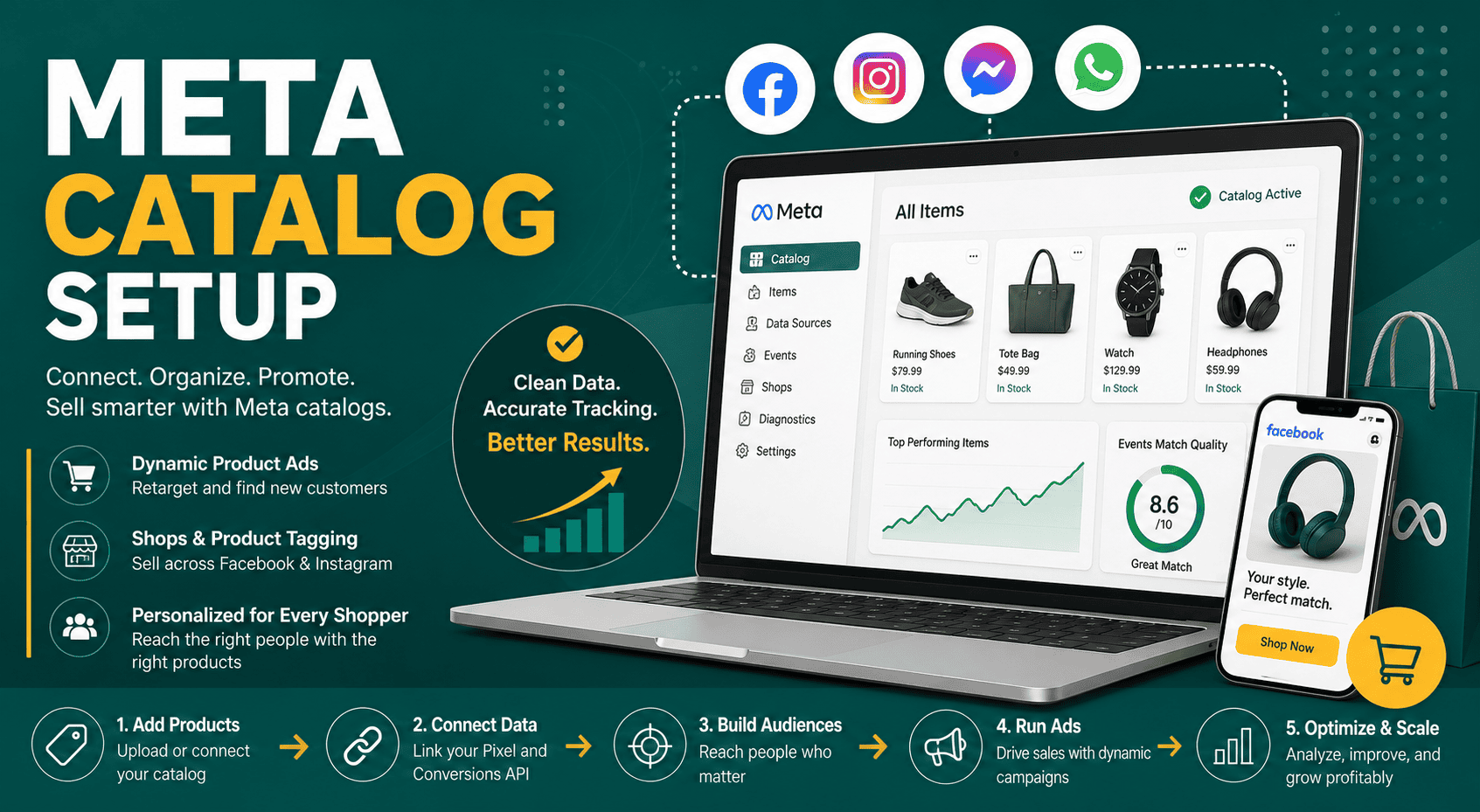
Meta catalog setup is the process of creating, organizing, and connecting a product or service catalog inside Meta Commerce Manager so you can promote items across Facebook, Instagram, Messenger, WhatsApp, and Meta ads. A properly configured catalog helps businesses run dynamic product ads, create Shops, tag products in organic content, retarget website visitors, and show relevant items to people based on browsing or purchase behavior.
For ecommerce brands, retailers, service businesses, travel companies, real estate firms, and automotive advertisers, a Meta catalog can become one of the most important assets in the advertising account. Instead of manually creating ads for every product or offer, Meta can pull information from your catalog, match it with user behavior, and automatically display relevant items in personalized ad formats.
However, successful meta catalog setup is not only about uploading a spreadsheet. Your catalog needs clean product data, accurate images, correct pricing, reliable availability, proper website tracking, and a structure that supports your campaign goals. This guide explains what a Meta catalog is, how to set it up, what data you need, how to connect it with your website, and how to avoid common catalog errors.
A Meta catalog is a database of products, services, listings, destinations, vehicles, or other items that you want to promote or sell across Meta platforms. Each item in the catalog includes details such as title, description, price, image, availability, product URL, brand, category, and other attributes depending on your business type.
Catalogs are managed inside Meta Commerce Manager and can be connected to Meta Business Manager, ad accounts, Pixels, Conversions API, Shops, and partner platforms such as Shopify, WooCommerce, Magento, BigCommerce, and other ecommerce systems.
Once your catalog is active, Meta can use it for several purposes:
A well-built catalog improves both advertising efficiency and customer experience. Instead of showing generic ads to broad audiences, Meta can match the right product to the right person at the right time. This is especially valuable for stores with many products, changing inventory, seasonal collections, or different customer segments.
For example, if someone views a pair of shoes on your website but does not buy, Meta can later show that exact product, similar products, or complementary items in a Facebook or Instagram ad. If your catalog and event tracking are configured correctly, this process can happen automatically and at scale.
Meta catalog setup is especially powerful when combined with accurate conversion tracking. If your Pixel and Conversions API are not sending reliable product events, Meta may struggle to match website behavior with catalog items. Before scaling catalog campaigns, review your Meta Pixel and Conversions API event tracking setup so product views, add-to-cart events, purchases, and item IDs are captured correctly.
Meta supports different catalog types depending on what your business sells or promotes. Choosing the right catalog type is important because it determines the fields, item attributes, and campaign formats available to you.
An ecommerce catalog is used for physical products, digital products, apparel, accessories, electronics, cosmetics, furniture, and most online store items. This is the most common catalog type and is used for dynamic product ads, Shops, product tagging, and Advantage+ shopping campaigns.
A travel catalog is designed for hotels, flights, destinations, vacation rentals, and travel packages. It allows advertisers to promote travel inventory dynamically based on location, dates, availability, and user interest.
A real estate catalog is used for property listings, including homes, apartments, rentals, and commercial properties. It can include details such as location, price, number of bedrooms, property type, and availability.
An auto catalog is used by dealerships, marketplaces, and automotive businesses to promote vehicles. Fields may include make, model, year, mileage, body style, price, and availability.
Some businesses use a catalog-like structure to promote services, packages, events, or custom offerings. While Meta’s standard catalog formats are more product-focused, service businesses can still use structured feeds in some cases, depending on the campaign goal and approval requirements.
Before starting your meta catalog setup, prepare the right business assets and product information. This will reduce errors and help your catalog get approved faster.
You need access to a Meta Business Manager account, also called a business portfolio. This is where your ad account, Page, Instagram account, Pixel, catalog, and Commerce Manager assets are managed.
If you plan to use Shops, product tagging, or Instagram shopping features, your catalog should be connected to the correct Facebook Page and Instagram account. Make sure the accounts represent the same business and follow Meta’s commerce policies.
To run catalog ads, you need an active ad account connected to the same business portfolio. The ad account should have a valid payment method and proper user permissions.
For dynamic ads and retargeting, your website needs Meta tracking installed. The Pixel and Conversions API should send events such as ViewContent, AddToCart, InitiateCheckout, and Purchase. Product IDs in these events must match item IDs in your catalog.
You need a way to send product data to Meta. Common data sources include ecommerce platform integrations, scheduled feed files, manual uploads, Google Sheets, or API connections.
High-quality product images are essential. They should be clear, accurate, and compliant with Meta policies. Since product image quality affects both approval and ad performance, it is worth reviewing best practices for image optimization for faster websites and better SEO, especially if your catalog pulls images directly from your ecommerce site.
Meta requires certain fields for each catalog item. Missing or incorrect fields can cause upload errors, disapproved products, or poor ad delivery.
Common required fields for ecommerce catalogs include:
Additional recommended fields include sale price, product category, Google product category, item group ID, gender, color, size, material, pattern, shipping weight, custom labels, and additional image links.
Go to Meta Commerce Manager and select the correct business portfolio. From there, choose the option to create a new catalog. If your business already has a catalog, confirm whether you should update the existing one or create a separate catalog for a different region, brand, store, or product category.
Select the catalog type that best matches your business. For most online stores, choose ecommerce. If you advertise hotels, flights, property listings, or vehicles, choose the specialized catalog type that matches your inventory.
This decision matters because different catalog types support different item fields and ad formats. If you choose the wrong type, you may need to create a new catalog later.
Choose the business portfolio that owns the catalog. Then assign access to team members, partners, agencies, and ad accounts that need to manage or use the catalog. Avoid giving unnecessary admin access. Use the minimum permission level required for each person or partner.
Meta gives you several ways to add items. The best option depends on your store size, technical setup, and how often your inventory changes.
If your catalog is used for ads, connect it to the domain, Pixel, and events that represent your website. This allows Meta to match catalog products with website actions. For example, when someone views a product page, the ViewContent event should pass the same content ID that exists in the catalog.
This product ID match is one of the most important parts of meta catalog setup. If your website sends one ID format and your catalog uses another, Meta may not be able to connect user behavior to specific products.
Assign the catalog to the ad account that will run campaigns. Without this connection, you may not be able to select the catalog when creating dynamic ads or Advantage+ catalog-based campaigns.
After uploading products, open the catalog diagnostics section. Meta will show errors, warnings, and recommendations. Fix major issues first, especially missing images, invalid prices, broken product URLs, policy violations, and rejected items.
Product sets are groups of catalog items filtered by rules such as category, brand, price, availability, margin, season, or custom label. Product sets help you organize campaigns and control which items appear in specific ads.
Examples of useful product sets include:
Once your catalog, Pixel, and events are connected, create a test campaign or preview dynamic ad formats. Check that product names, prices, images, and landing pages display correctly. A catalog may technically upload successfully but still produce poor ads if titles are unclear, images are cropped badly, or product pages do not match the offer.
Catalog setup is not a one-time task. Products change, prices update, images move, URLs break, and inventory fluctuates. Monitor catalog diagnostics regularly, especially before major sales, product launches, seasonal campaigns, or website migrations.
WooCommerce stores can connect products to Meta using plugins, product feed tools, or custom feeds. The easiest setup is often through an official or third-party integration that syncs product data automatically. However, store owners should still review product attributes, image quality, product variations, and tracking accuracy.
Before connecting WooCommerce to Meta, make sure your store is technically ready. A reliable ecommerce foundation should include clean product pages, working checkout, accurate inventory, analytics, payment configuration, and performance optimization. A structured WooCommerce store launch and optimization checklist can help you confirm that your store is ready before pushing products into Meta Commerce Manager.
For WooCommerce catalogs, pay close attention to variable products. If you sell products with sizes, colors, or other variations, each variation may need a unique product ID, price, availability status, and image. Incorrect variation handling can lead to mismatched ads, rejected products, or inaccurate retargeting.
Product IDs should not change unless absolutely necessary. Meta uses IDs to match catalog items with website events and ad performance history. Changing IDs too often can break retargeting and reset product-level learning.
Product titles should be easy to understand. Include the product type, brand, model, color, size, or important feature when relevant. Avoid stuffing titles with unnecessary promotional language.
For example, “Women’s Black Leather Ankle Boots” is more useful than “Amazing Premium Product Best Deal.”
Descriptions should explain what the product is, who it is for, and what makes it valuable. Avoid vague, duplicate, or keyword-stuffed descriptions. Strong descriptions help both users and Meta understand your items better.
The price in your catalog must match the price on your website. Price mismatches can create disapprovals and reduce trust. If you run sales, use sale price fields correctly and keep feed updates frequent.
If a product is out of stock, your catalog should reflect that. Sending traffic to unavailable items wastes ad spend and creates a poor customer experience. Stores with fast-changing inventory should use frequent scheduled feed updates or real-time integrations.
Product images should be sharp, well-lit, and representative of the actual item. Avoid watermarks, excessive text overlays, misleading lifestyle images, or images that do not match the product variant.
Custom labels help you segment products for advertising. You can label products by margin, season, performance, price range, priority, stock level, or promotion type.
Examples include:
The catalog itself stores product information, but tracking tells Meta how people interact with those products. For dynamic retargeting and performance optimization, your website events must pass the correct product identifiers.
Important events include:
Each of these events should include parameters such as content_ids, content_type, value, currency, and product details when applicable. The content_ids value should match the item ID used in your catalog.
If the IDs do not match, Meta may still record events, but it will not reliably know which catalog item was viewed or purchased. That weakens dynamic ads, product recommendations, campaign optimization, and reporting accuracy.
After your catalog is active, you can use it in several campaign types and ad formats. The best option depends on your objective, budget, audience size, and sales funnel.
Dynamic retargeting ads show products to people who previously interacted with your website or app. For example, a person who viewed a product but did not buy can later see that same item in an Instagram ad.
This is one of the most common and effective uses of a Meta catalog because it focuses on people who have already shown purchase intent.
Dynamic prospecting uses catalog data to show relevant products to new people who may be interested in your offerings. Meta uses signals such as user behavior, product engagement, and campaign learning to match items to potential buyers.
Advantage+ shopping campaigns can use catalog items to automate product promotion across audiences and placements. These campaigns often work best when the catalog is clean, conversion tracking is strong, and the account has enough purchase data.
Carousel ads allow you to show multiple products in a swipeable format. Catalog-connected carousel ads can automatically populate products from a selected product set.
Collection ads combine a main creative asset with product tiles from your catalog. They are especially useful for mobile shopping experiences and product discovery.
A catalog is most effective when paired with the right audience strategy. You can build audiences based on website behavior, customer lists, engagement, lookalikes, broad targeting, or Meta’s automated audience systems.
Common catalog campaign audiences include:
If you are planning catalog campaigns, it is helpful to align your product sets with your audience strategy. For example, you might show best sellers to cold audiences, abandoned cart products to warm audiences, and complementary products to past customers. For a broader planning framework, review this Meta audience targeting guide for Facebook and Instagram.
This is one of the most common and damaging mistakes. Your catalog item ID and the content ID sent through website events must match. If they do not, dynamic ads may not show the correct products.
Images that are blurry, cropped incorrectly, too small, or inconsistent can hurt both approval and conversions. Catalog ads are highly visual, especially on Instagram.
If prices in the catalog do not match prices on the website, products may be rejected or users may lose trust. This is especially important during sales and promotions.
Advertising unavailable items wastes budget and frustrates customers. Make sure stock status updates automatically if inventory changes often.
Product titles should clearly identify the item. Vague titles make ads less useful and can reduce engagement.
Meta provides diagnostics for a reason. Errors and warnings can reveal missing fields, broken links, rejected items, image problems, and feed update failures.
A single product set may be fine for small stores, but growing businesses usually need more segmentation. Product sets give you better campaign control and reporting clarity.
Meta Catalog Diagnostics helps identify issues that affect product approval, delivery, and performance. Review diagnostics after the first upload and then regularly as your catalog changes.
Important issues to check include:
Fix high-impact issues first. If many best-selling or high-margin products are rejected, your campaigns may still run but underperform because Meta cannot use your most valuable inventory.
Product sets allow you to organize your catalog for specific campaigns, audiences, budgets, and promotions. The right structure depends on your business model, but most stores benefit from a few practical groupings.
A best-seller product set is useful for prospecting because proven products often perform better with cold audiences.
If profitability matters more than revenue volume, create product sets based on margin. This helps you avoid spending heavily on low-profit products.
Promotional product sets are useful for limited-time offers, seasonal campaigns, and inventory clearance.
New arrival product sets help introduce fresh inventory to existing customers, engaged users, and lookalike audiences.
Category product sets are useful when you want separate campaigns for shoes, handbags, electronics, furniture, skincare, or other major product groups.
Price-based sets can help align products with different customer segments. For example, you might create separate sets for budget items, mid-range products, and premium products.
After launching catalog campaigns, monitor both catalog health and campaign performance. Strong results depend on accurate tracking, clean product data, relevant audiences, and effective creative formats.
Important metrics include:
Catalog performance should be reviewed by product set, audience, placement, campaign type, and funnel stage. A single blended ROAS number can hide important details. Some products may drive many clicks but few purchases, while others may have lower traffic but stronger profitability.
For better analysis, compare your catalog campaign results with a structured reporting process. A practical Meta ads reporting framework can help you measure campaign performance, identify wasted spend, and improve optimization decisions.
Use this checklist to confirm your catalog is ready for advertising and commerce features:
Your catalog ads can drive traffic, but your product pages still need to convert. Make sure product pages load quickly, clearly show price and availability, include persuasive descriptions, display strong images, and make checkout easy.
Cold audiences and warm audiences behave differently. Separate campaign structures can help you control budgets, messaging, and product sets more effectively.
Meta allows advertisers to add frames, price overlays, discounts, and other dynamic elements. These can improve clarity, but too much text or visual clutter can reduce appeal.
Most Facebook and Instagram shopping activity happens on mobile devices. Review catalog ad previews and product landing pages on mobile before scaling spend.
If certain products repeatedly spend without converting, consider excluding them or moving them into a separate product set for testing.
Catalog campaign performance can reveal which products attract attention, which convert best, and which need better positioning. Use this data to improve product pages, pricing, bundles, and promotions.
The ideal update frequency depends on how often your product data changes. If prices, stock, or products change daily, your catalog should update at least daily. If inventory changes frequently throughout the day, use a more frequent sync or API-based update process.
As a general rule:
Regular updates help prevent price mismatches, out-of-stock ads, rejected products, and poor customer experience.
Meta catalog setup is a foundational step for ecommerce and product-based advertising on Facebook and Instagram. A clean catalog helps Meta understand your products, match them with user behavior, and create personalized ad experiences at scale.
The most important parts of a successful setup are accurate product data, stable item IDs, strong images, reliable product URLs, correct availability, and proper Pixel plus Conversions API tracking. Once those pieces are in place, you can use product sets, dynamic ads, Advantage+ shopping campaigns, and retargeting strategies to improve campaign performance.
A Meta catalog should not be treated as a one-time upload. It is a living data asset that needs regular maintenance, diagnostics, testing, and optimization. When managed well, it can become one of the strongest tools in your paid social strategy.